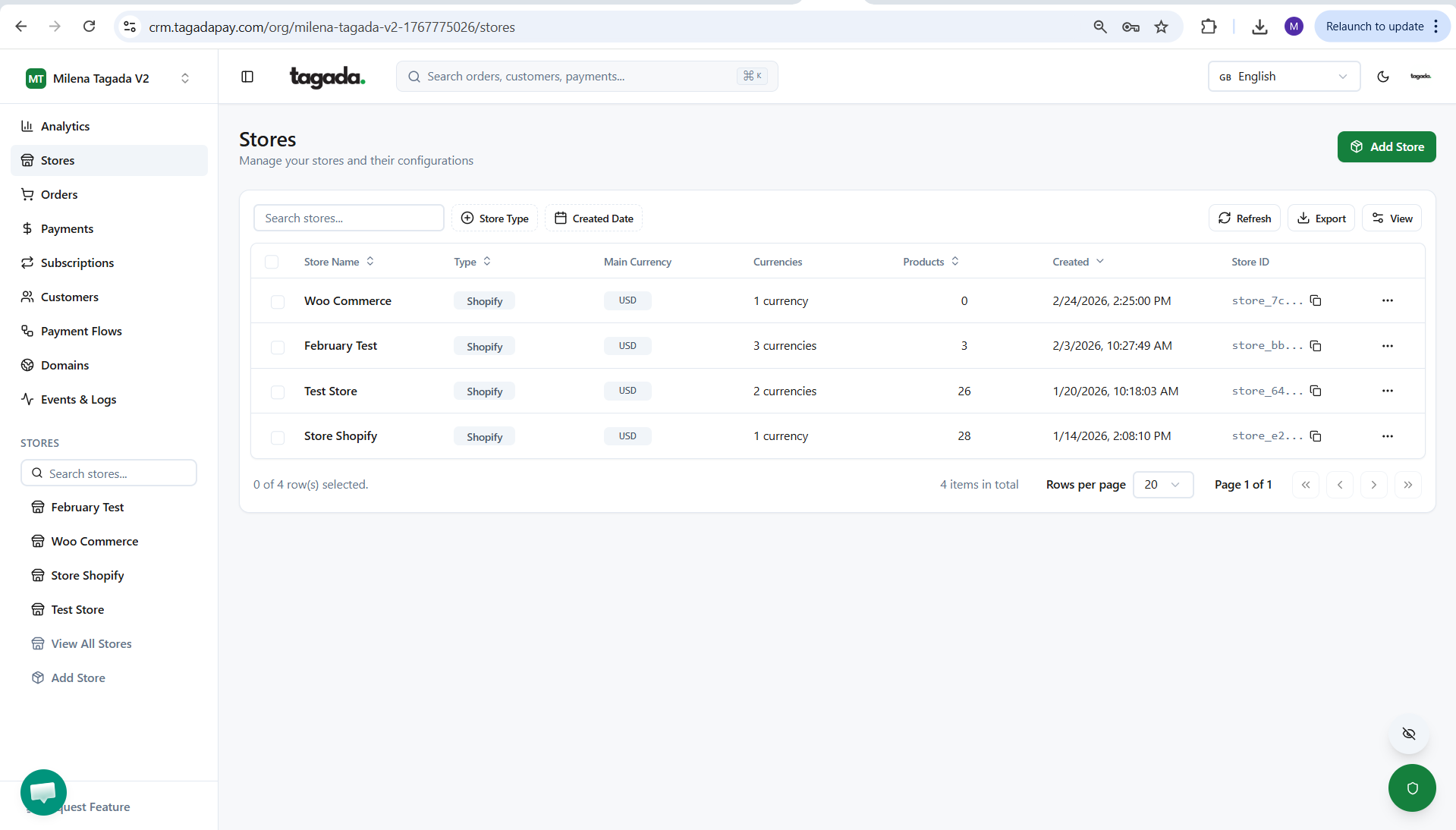
In your Tagada account click on Stores, then click on Add Store.
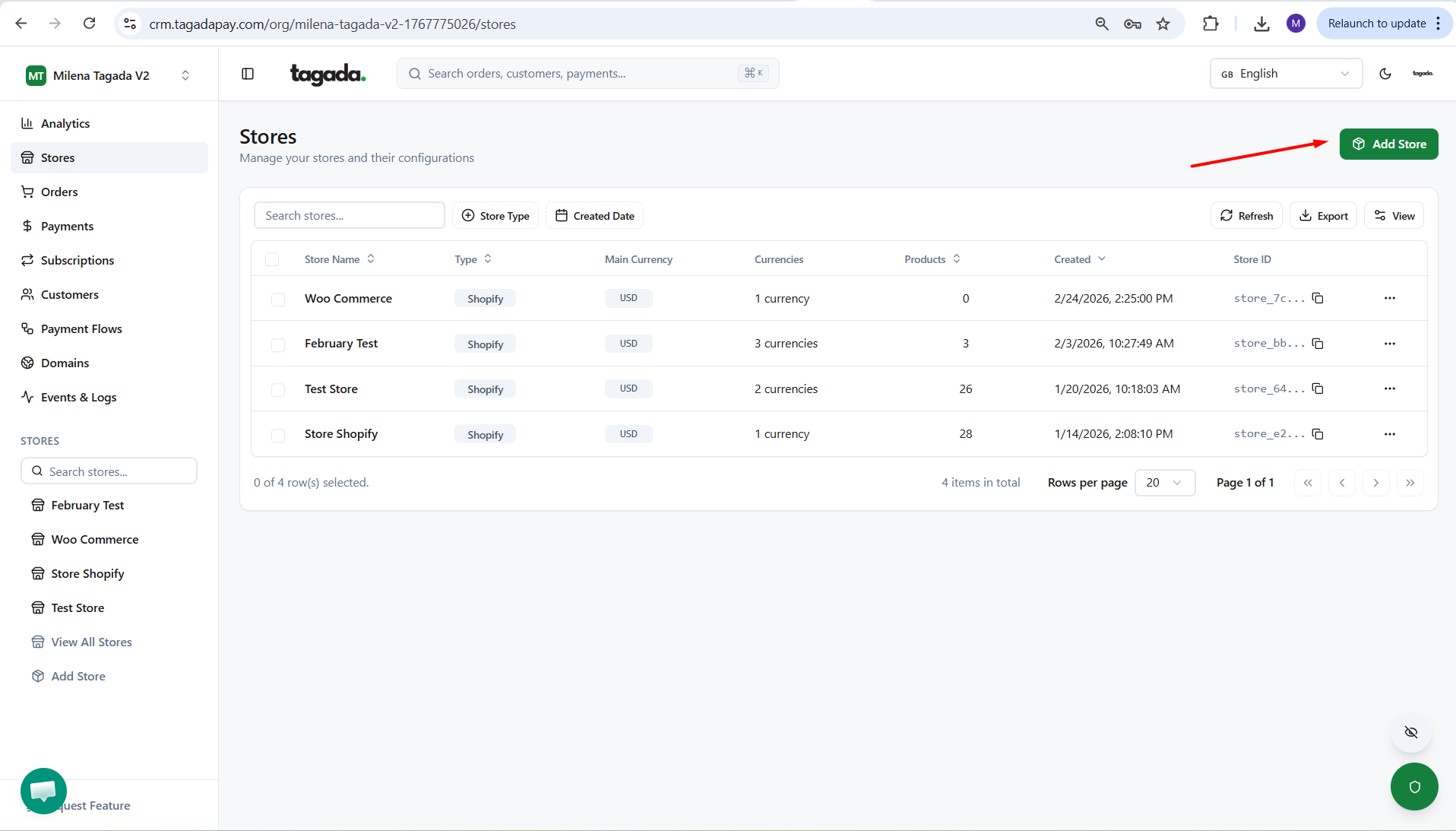
Add a name, logo, and color for your store. This information is visible only to you on your Tagada account. You can add multiple stores, so you always know exactly which store you’re managing.
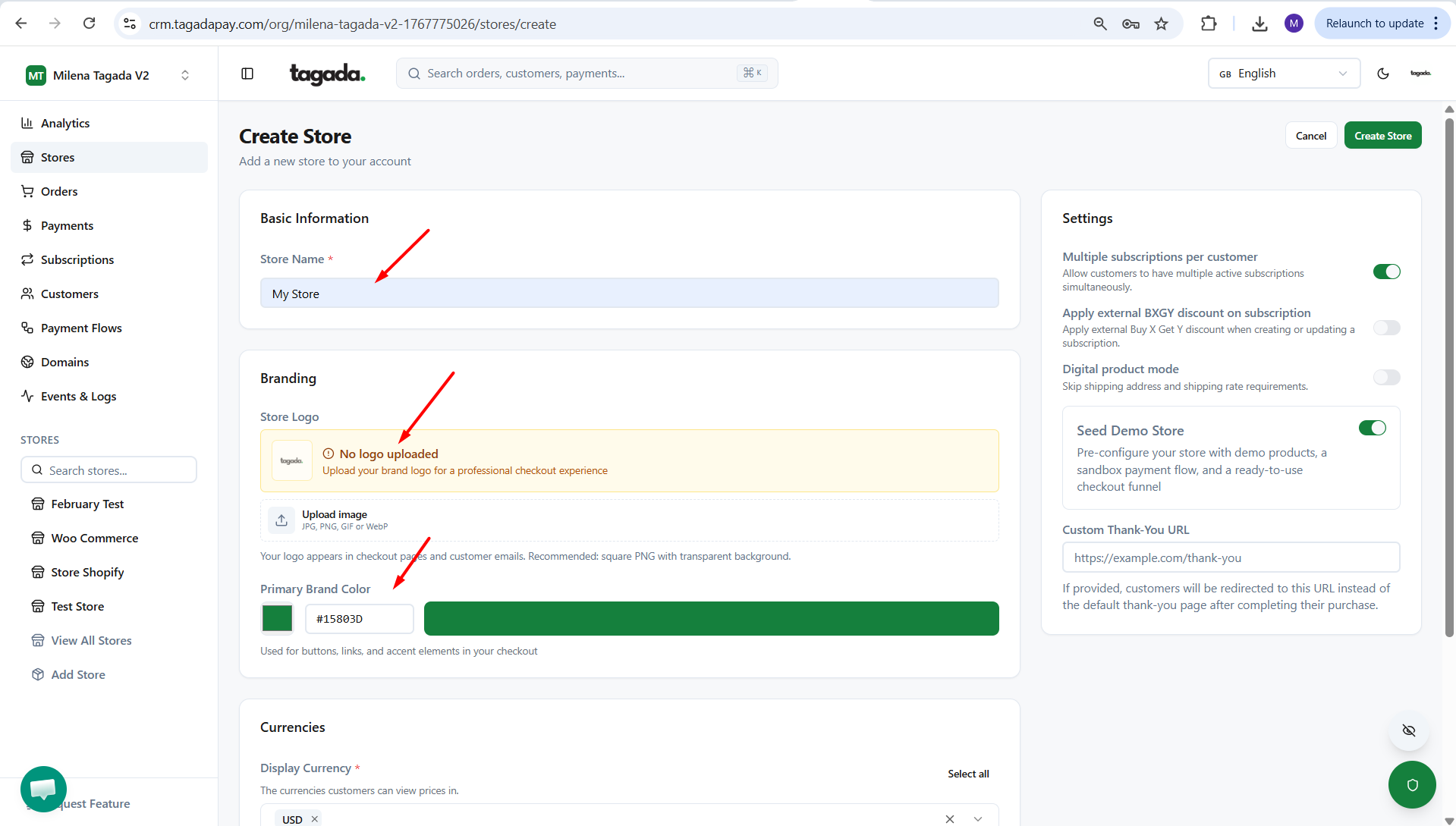
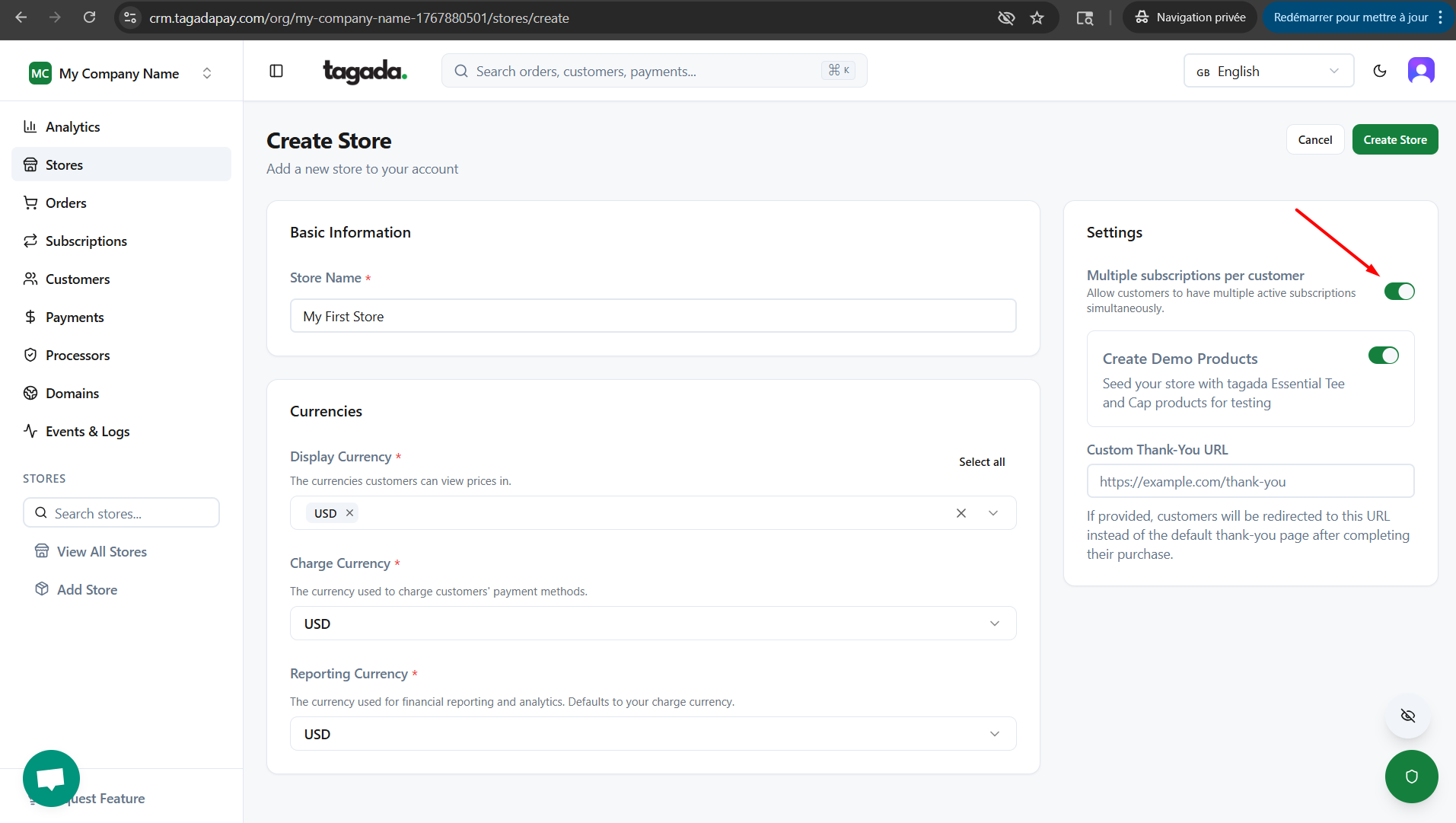
In this part you will be able to chose your currencies.
Display Currency - The currency (or currencies) shown on your checkout. If multiple currencies are enabled, the displayed currency is determined by the user’s IP location.
Charge Currency - The primary currency of your store. All currency conversions are calculated from this currency.
Reporting Currency - The main currency used for reporting and analytics across your store.
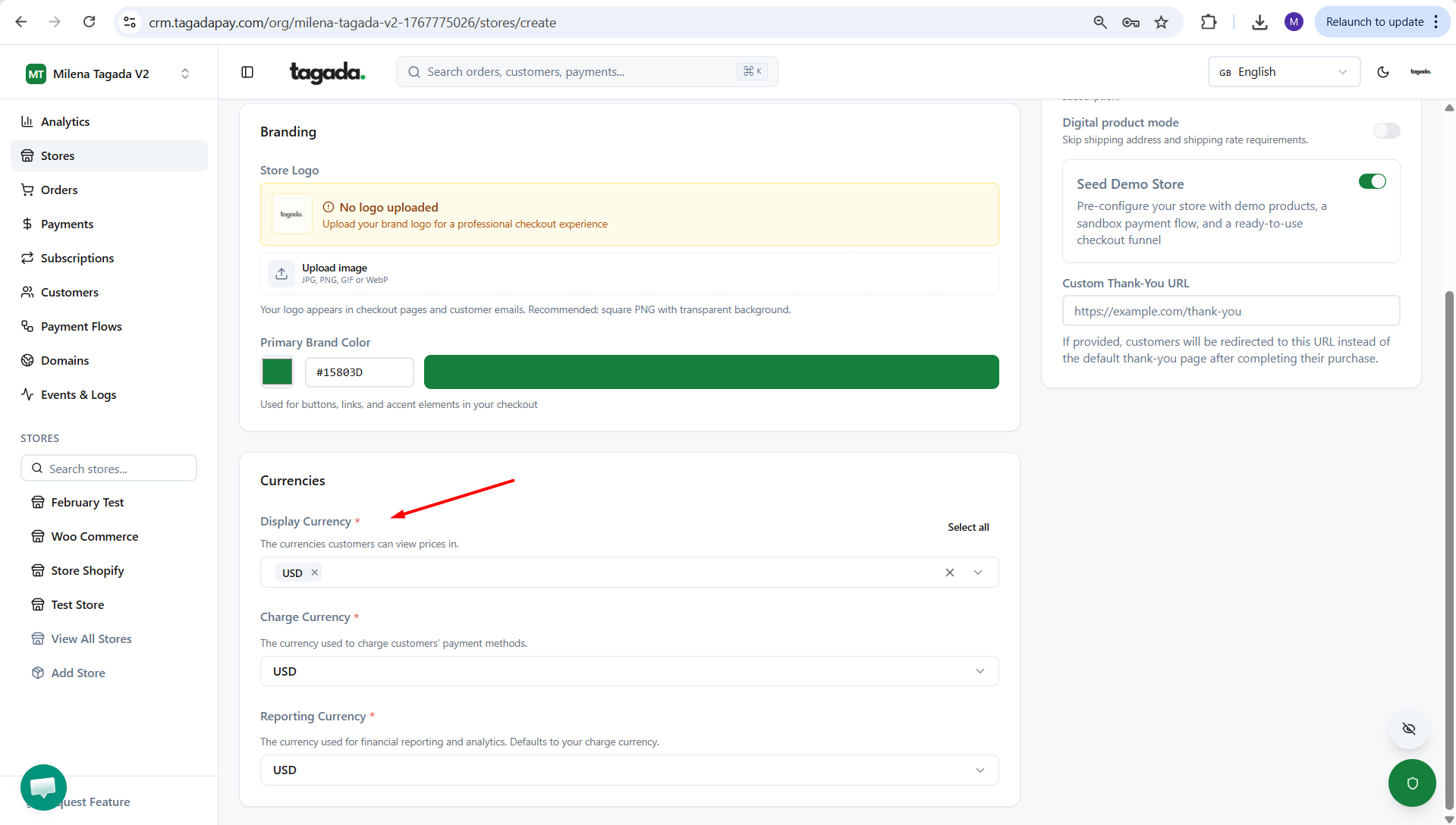
If you are running multiple subscriptions per customer make sure to enable that option at this step.
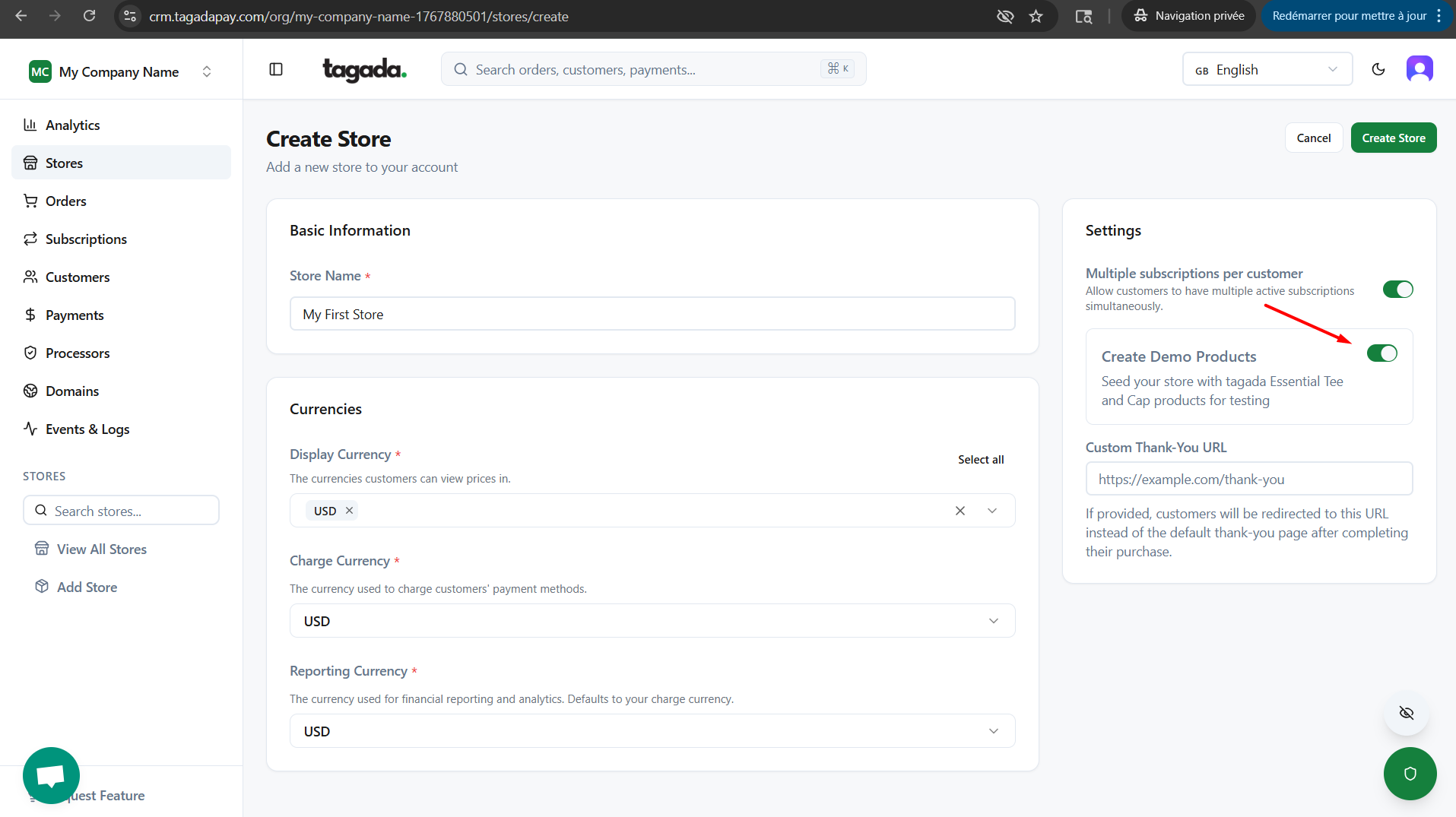
If you want to create demo products for your store for testing purposes make sure to enable that option at this step. This will add two Tagada products to your store.
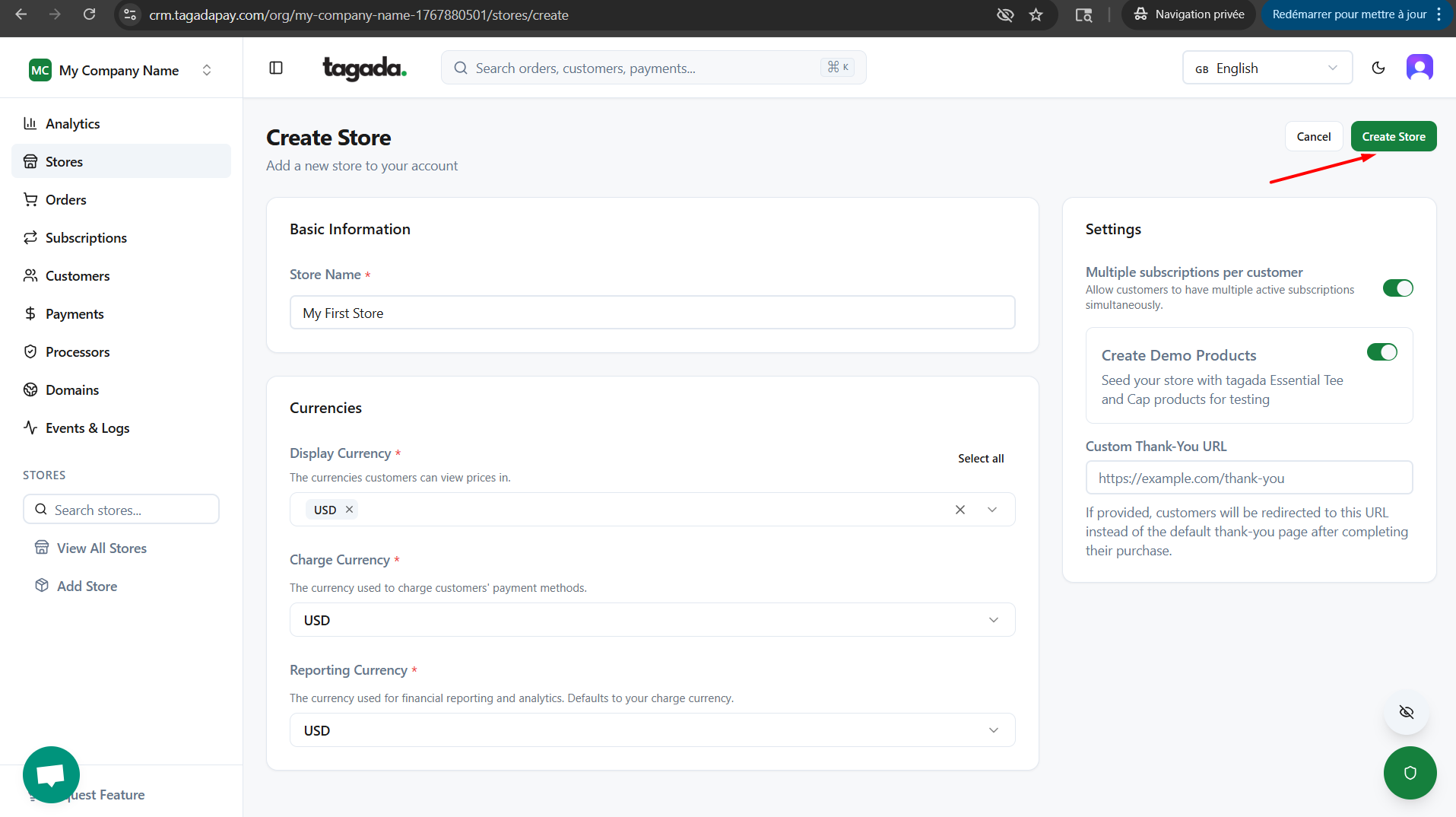
Click on Create Store
You can now manage your stores in the Stores section.