
Step 1: Select your desired store under Stores.
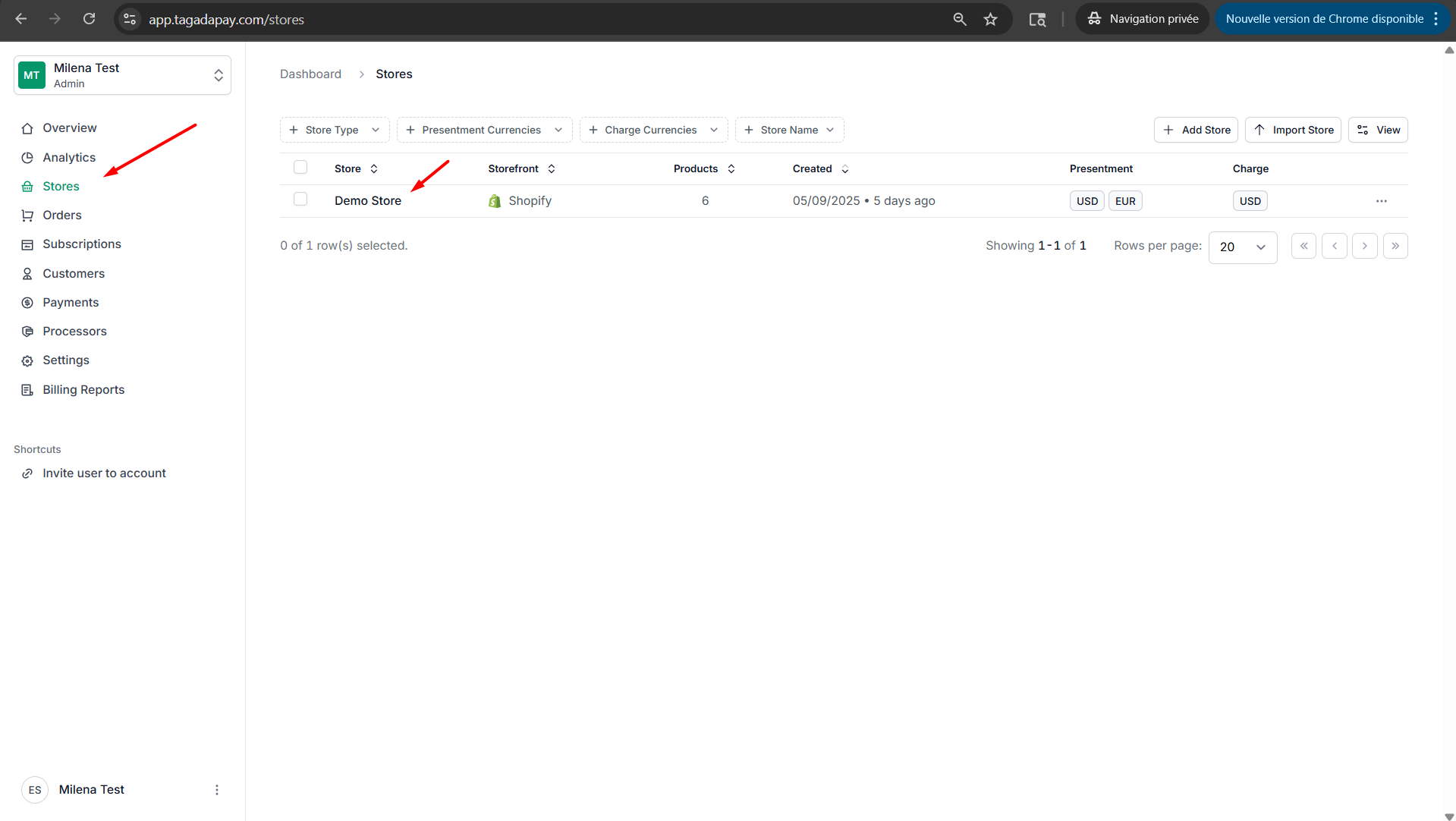
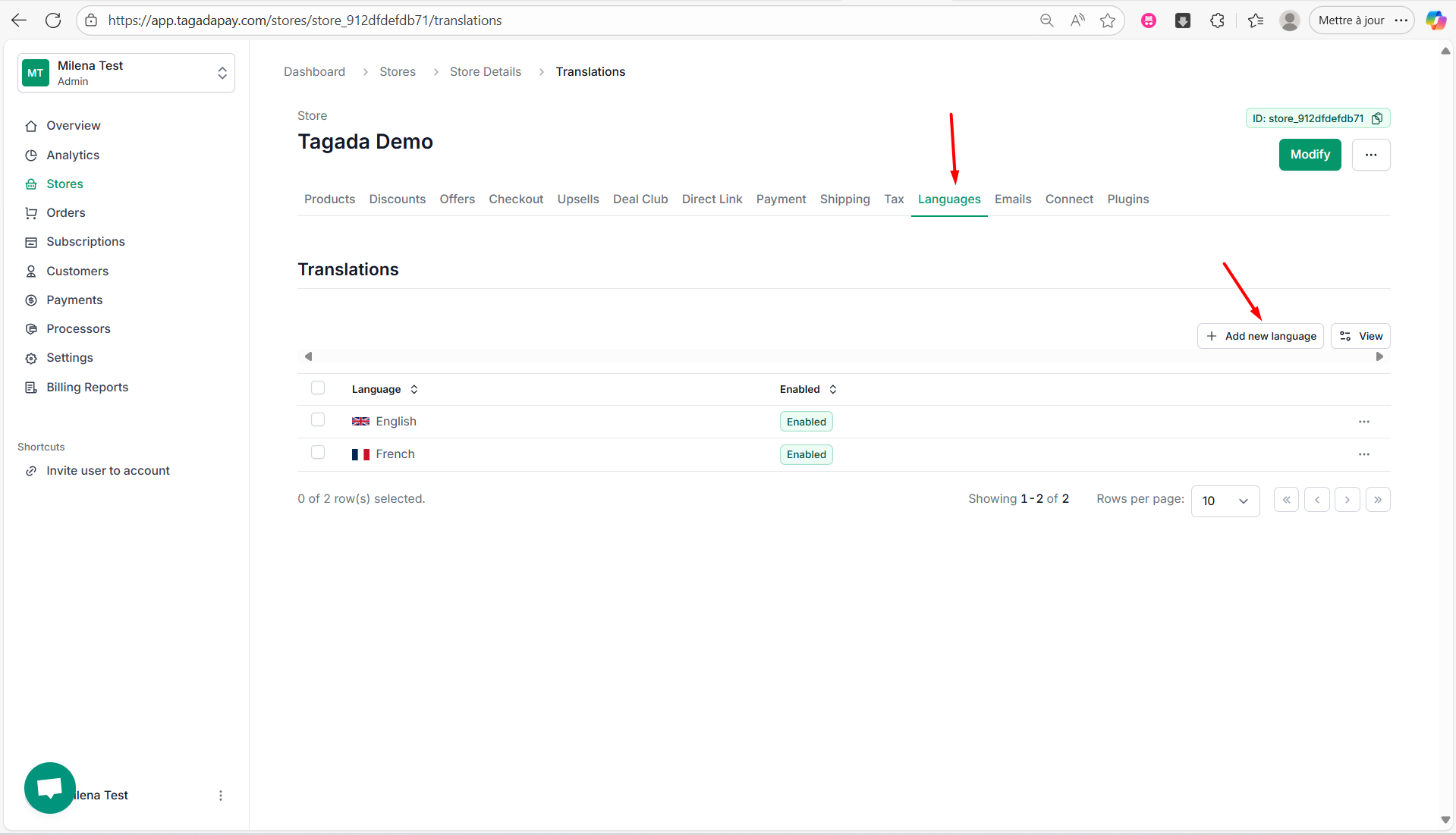
Step 2: Select the Languages tab in the menu. Click on Add new language.
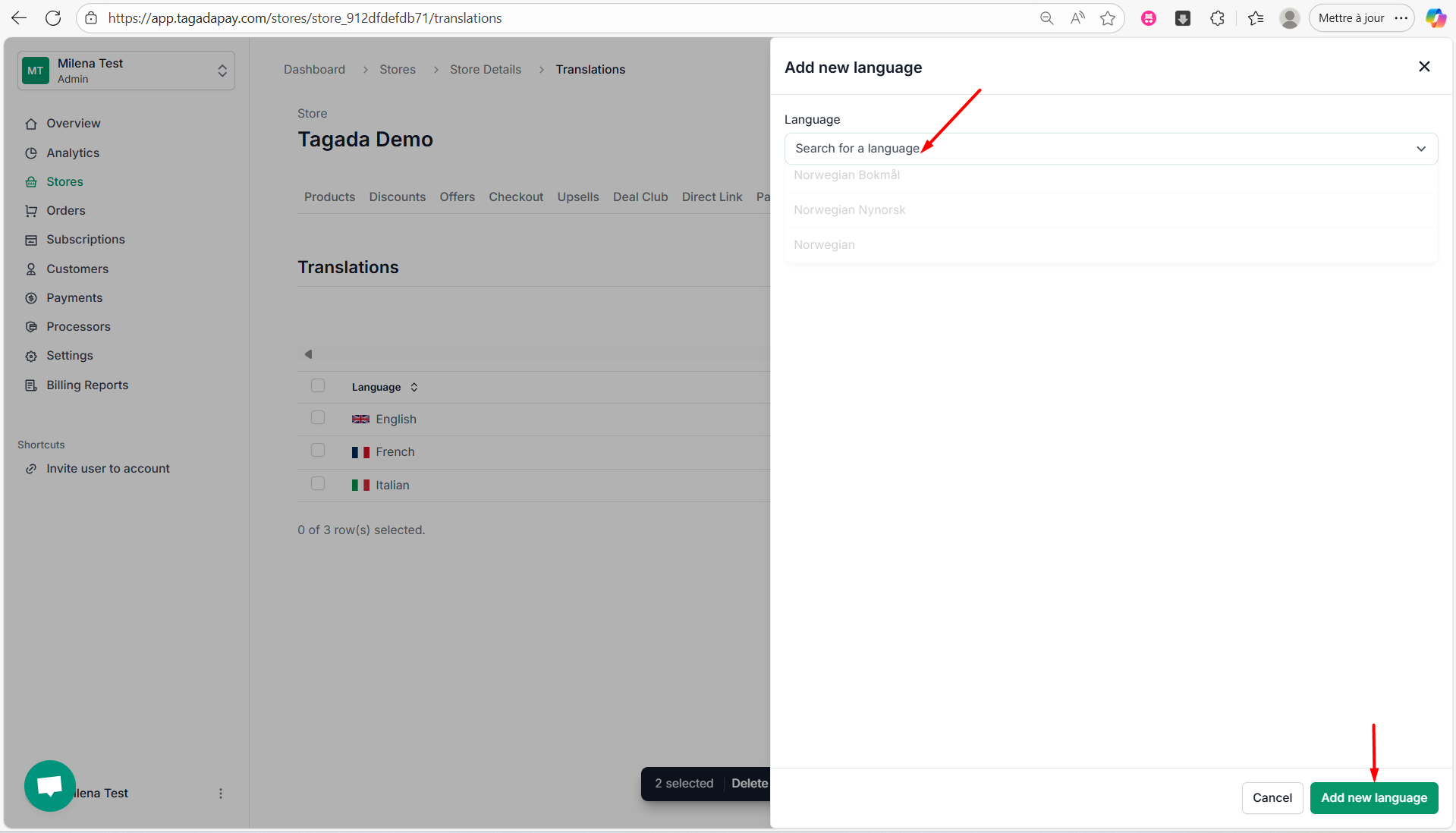
Step 3: Select your desired language in the drop-down and click on Add new language.
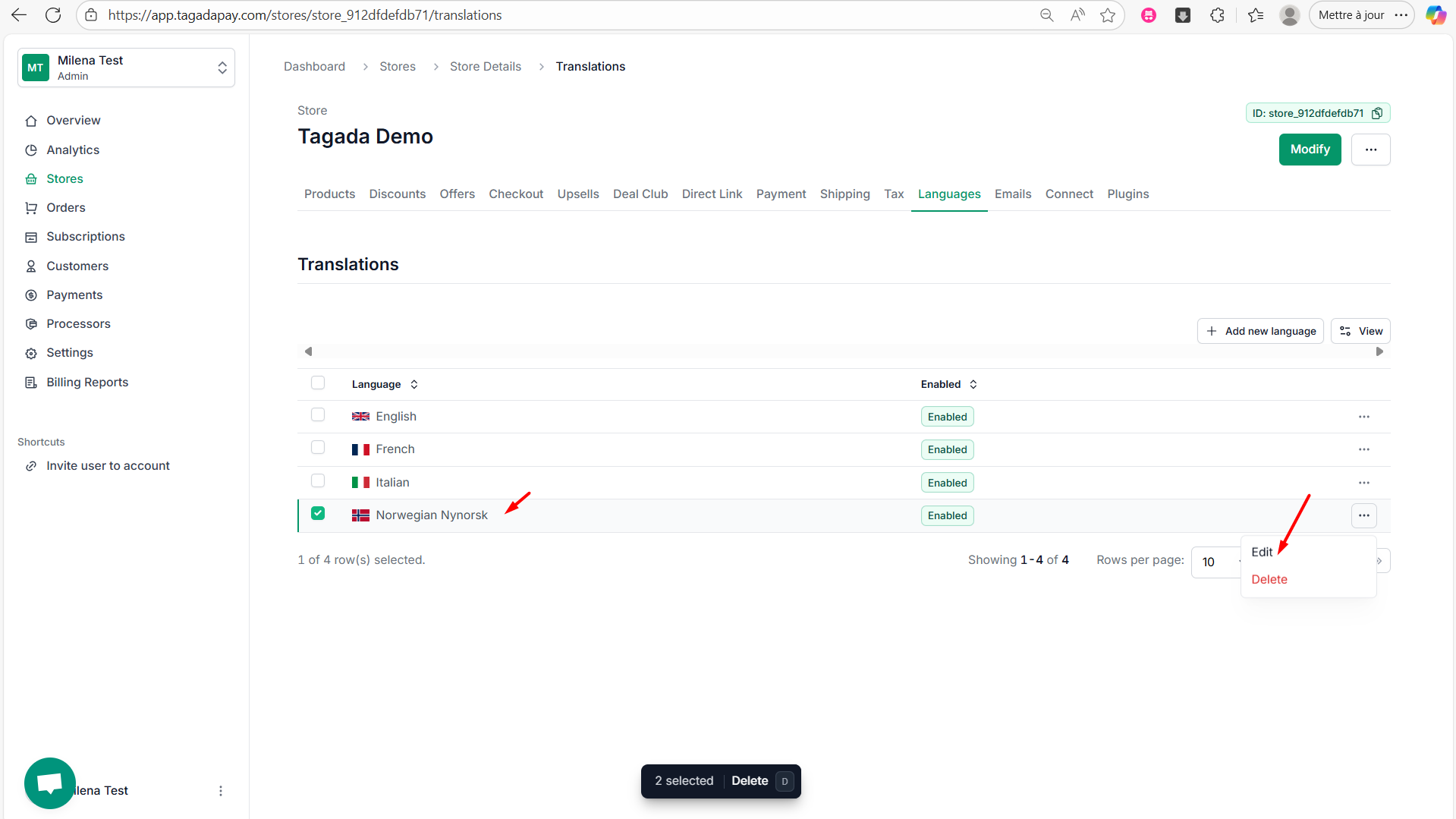
Step 4: Click on the three dots next to the language you have just added. Click on Edit.
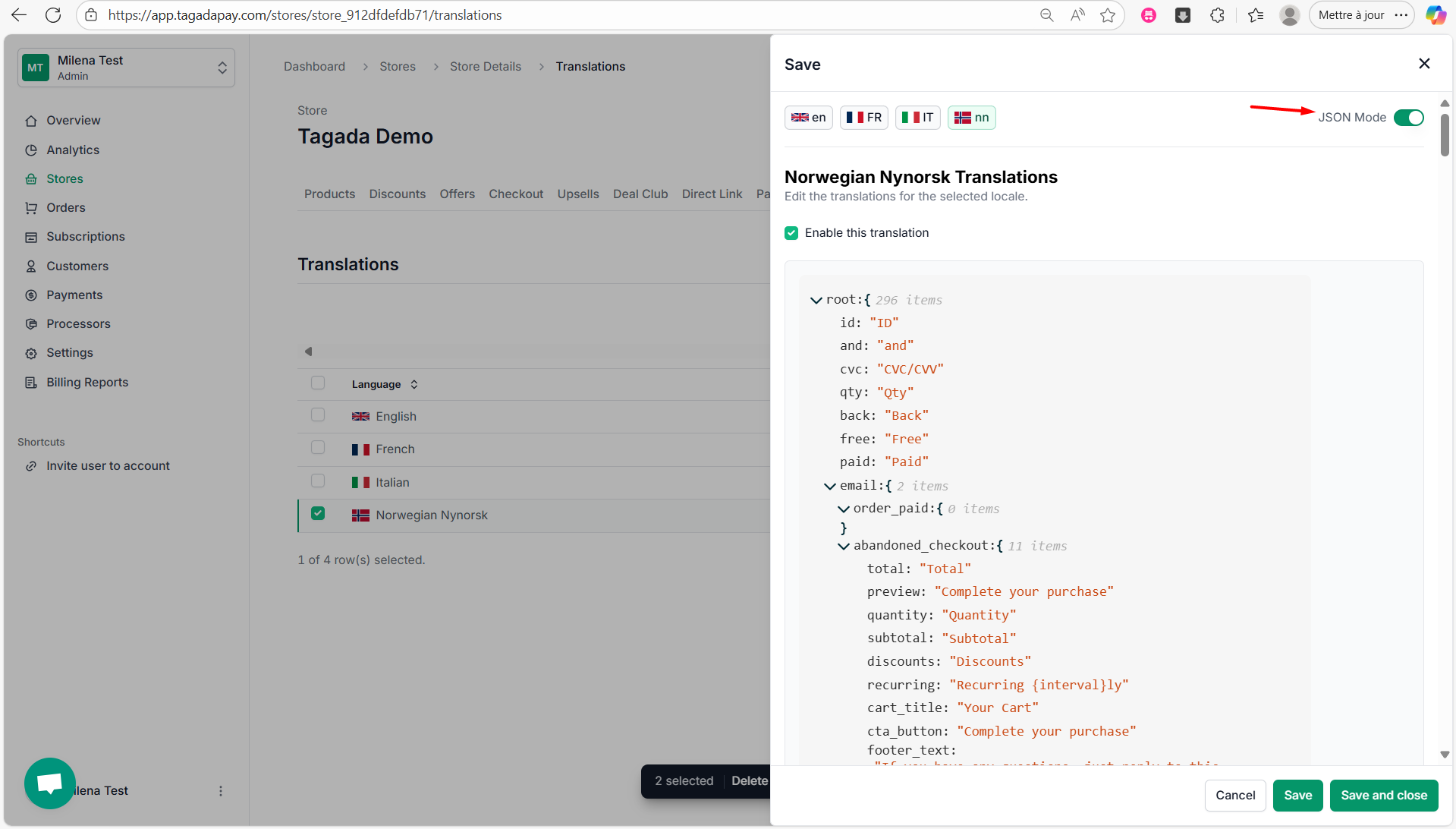
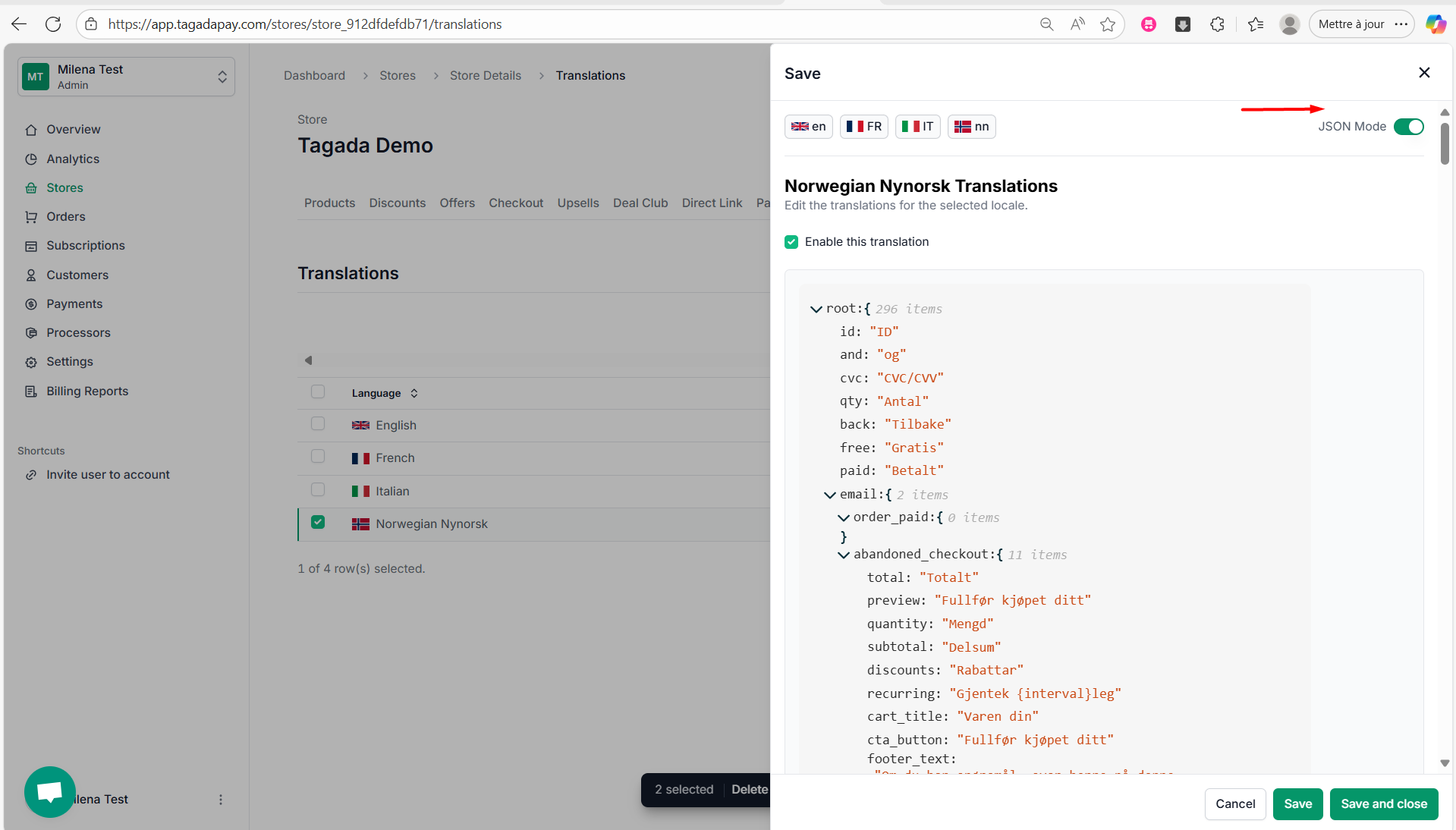
Step 5: Enable JSON mode.
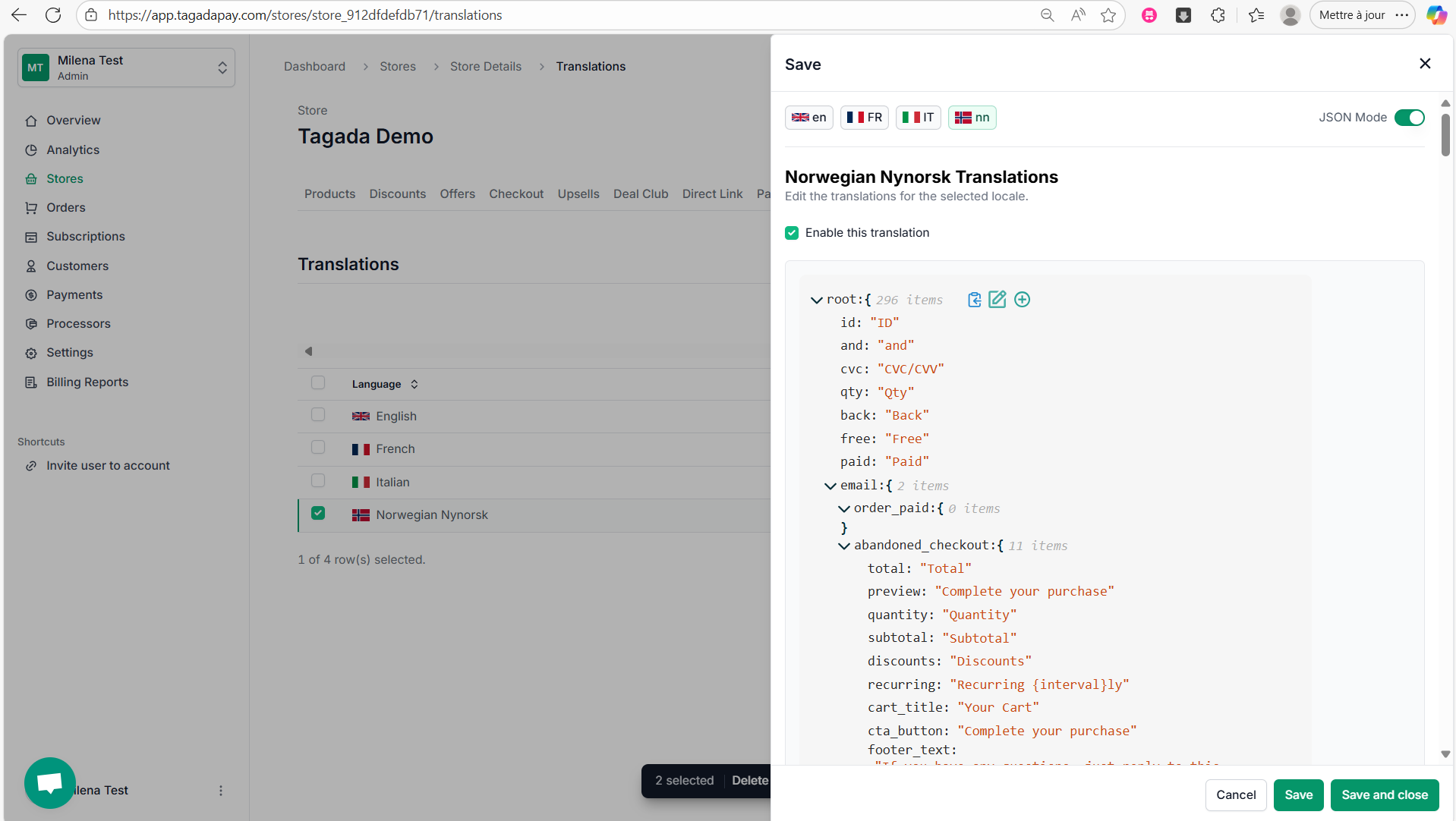
Step 6: Click on the edit button.

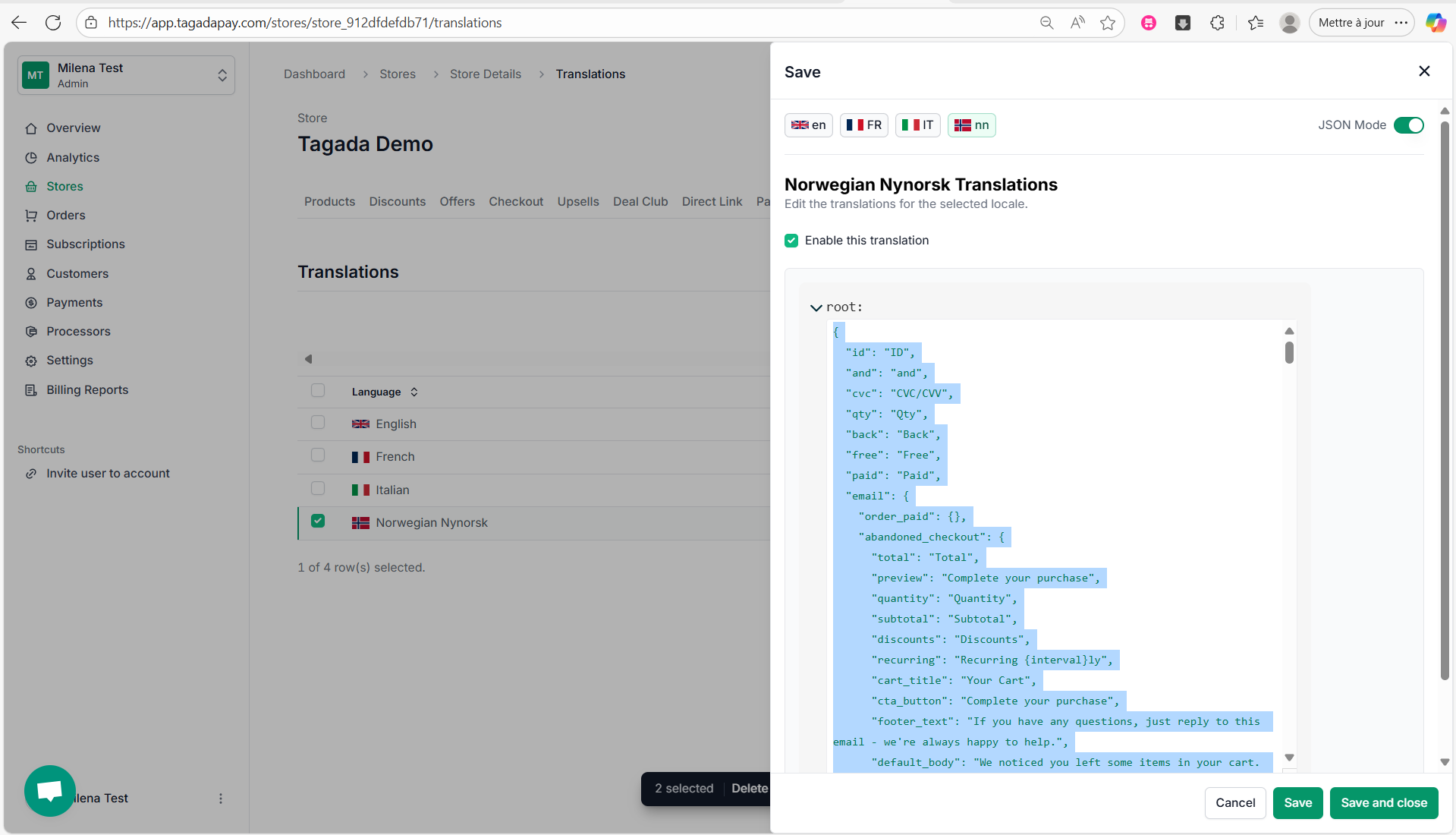
Step 7: Select the entire text (Ctrl+A) and copy it (Ctrl+C).

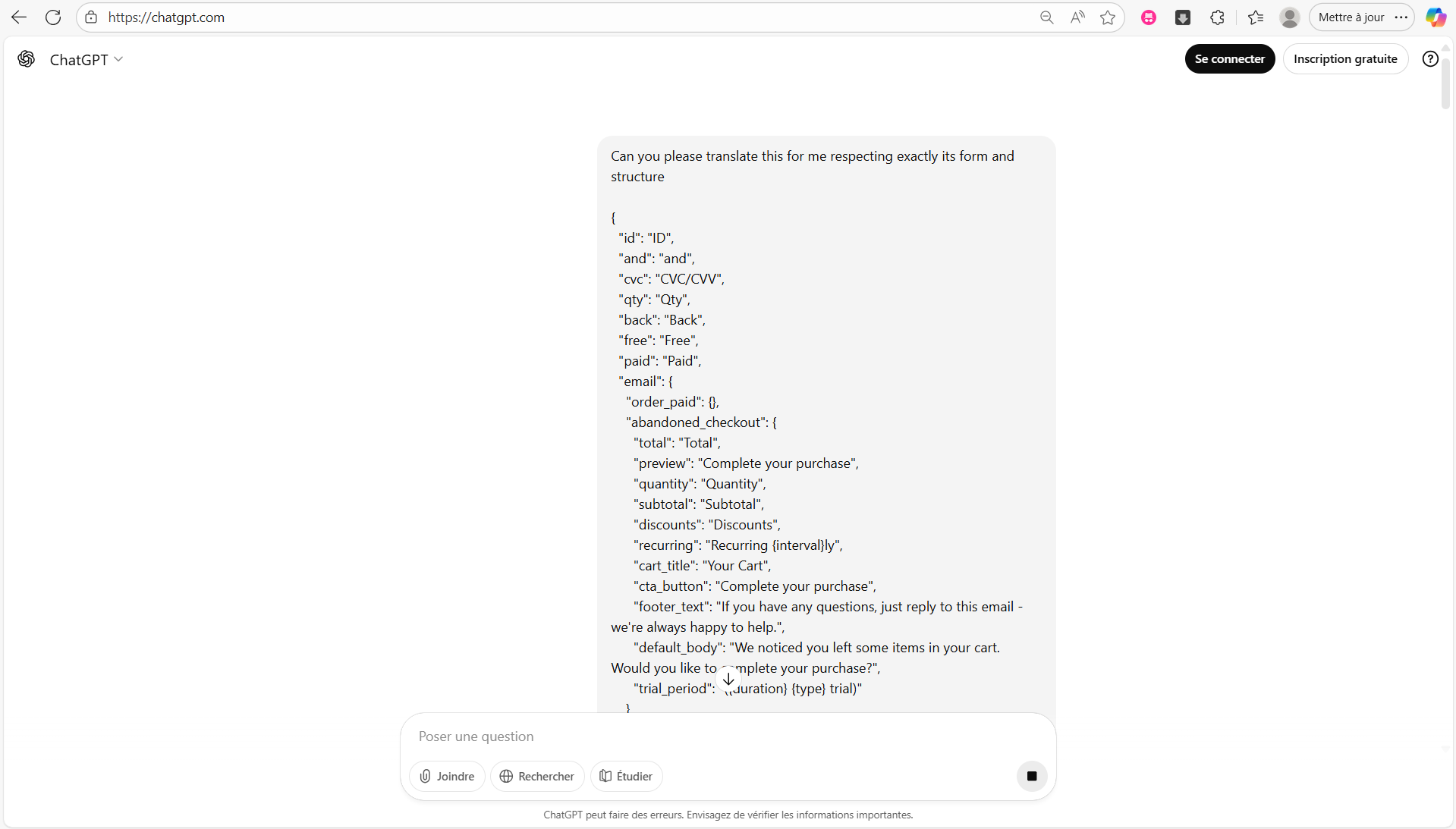
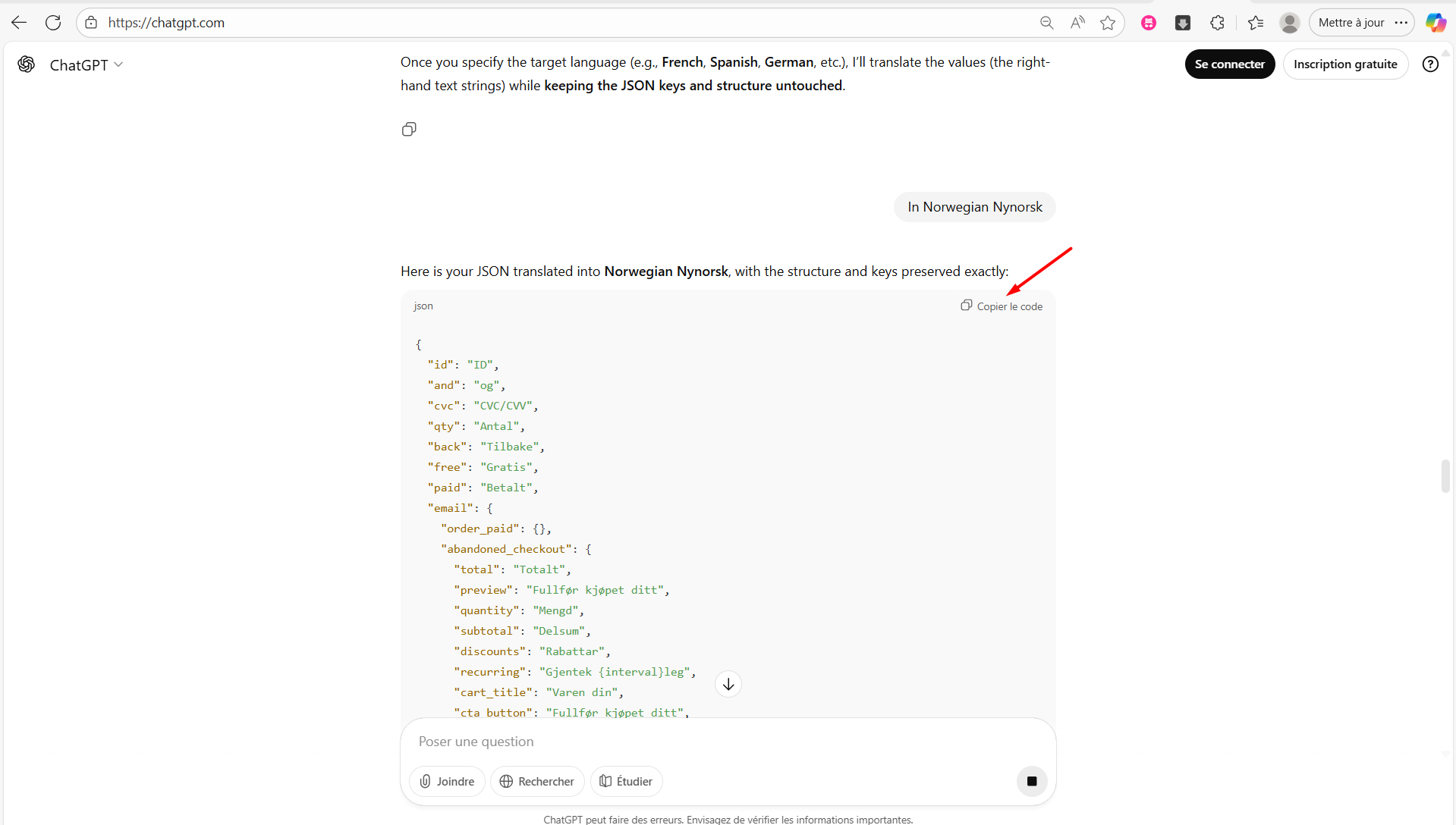
Step 8: Go to chatgpt.com and ask it to translate it into desired language, respecting exactly the structure and format of it.
Step 9: Copy the entire text translated by using the copy button.
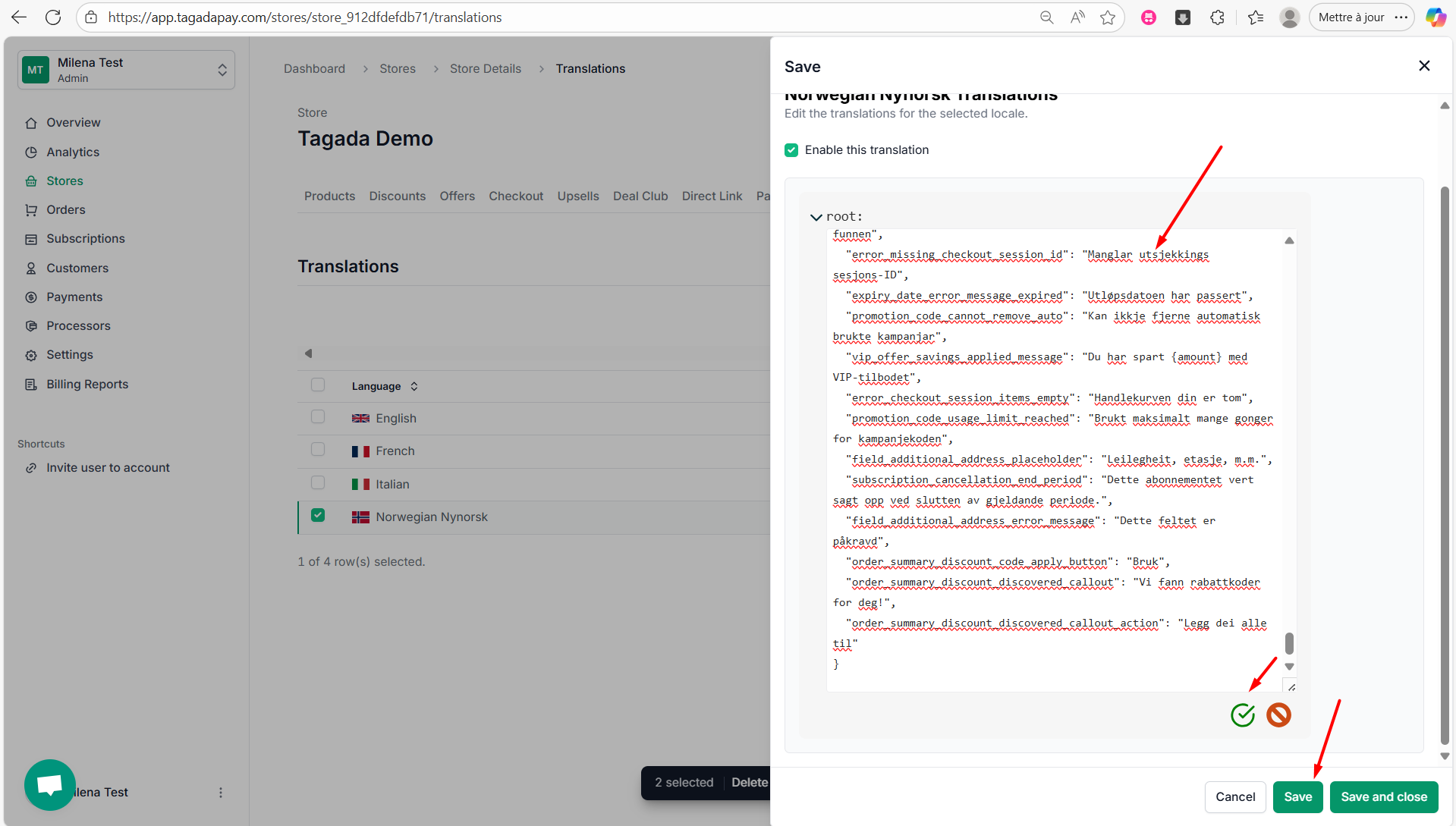
Step 10: Go back to Tagada. Select the entire JSON text (Ctrl+A), delete it and paste the copied text (Ctrl+P). Click on the green icon at the bottom to save it. Then click on Save or Save and Close.

Step 11: You can turn off the JSON mode and customize further line by line.
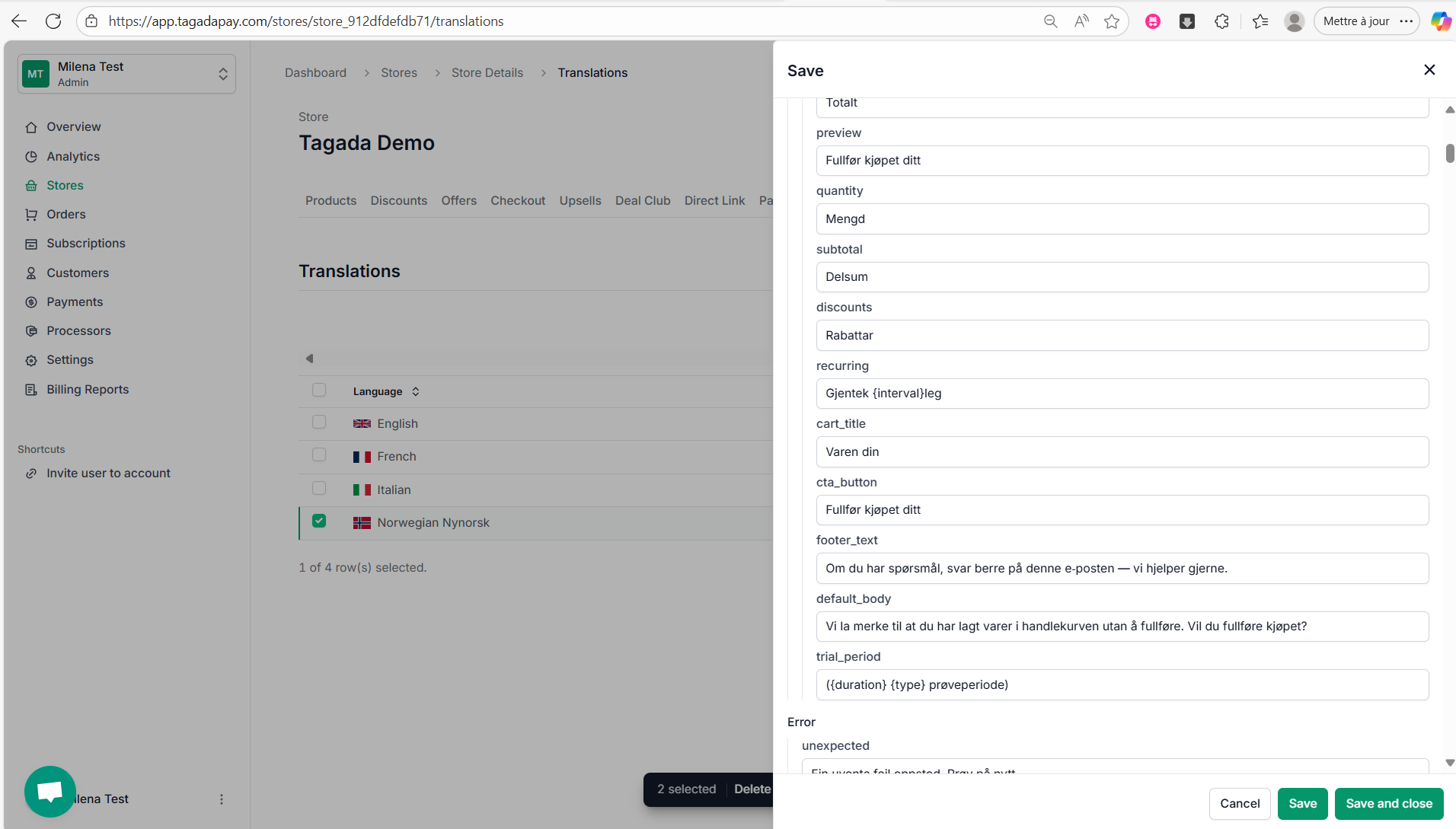
Step 12: Once you are finished, click on Save or Save and close.
Note: The language displayed at checkout is based on your customer’s IP address. For example, if a customer is located in Norway, the checkout will automatically appear in Norwegian — provided that you’ve added Norwegian in your Language settings.
You can add multiple languages to your store and customize each one individually. JSON mode allows you to easily translate content into languages not currently supported by using AI.