
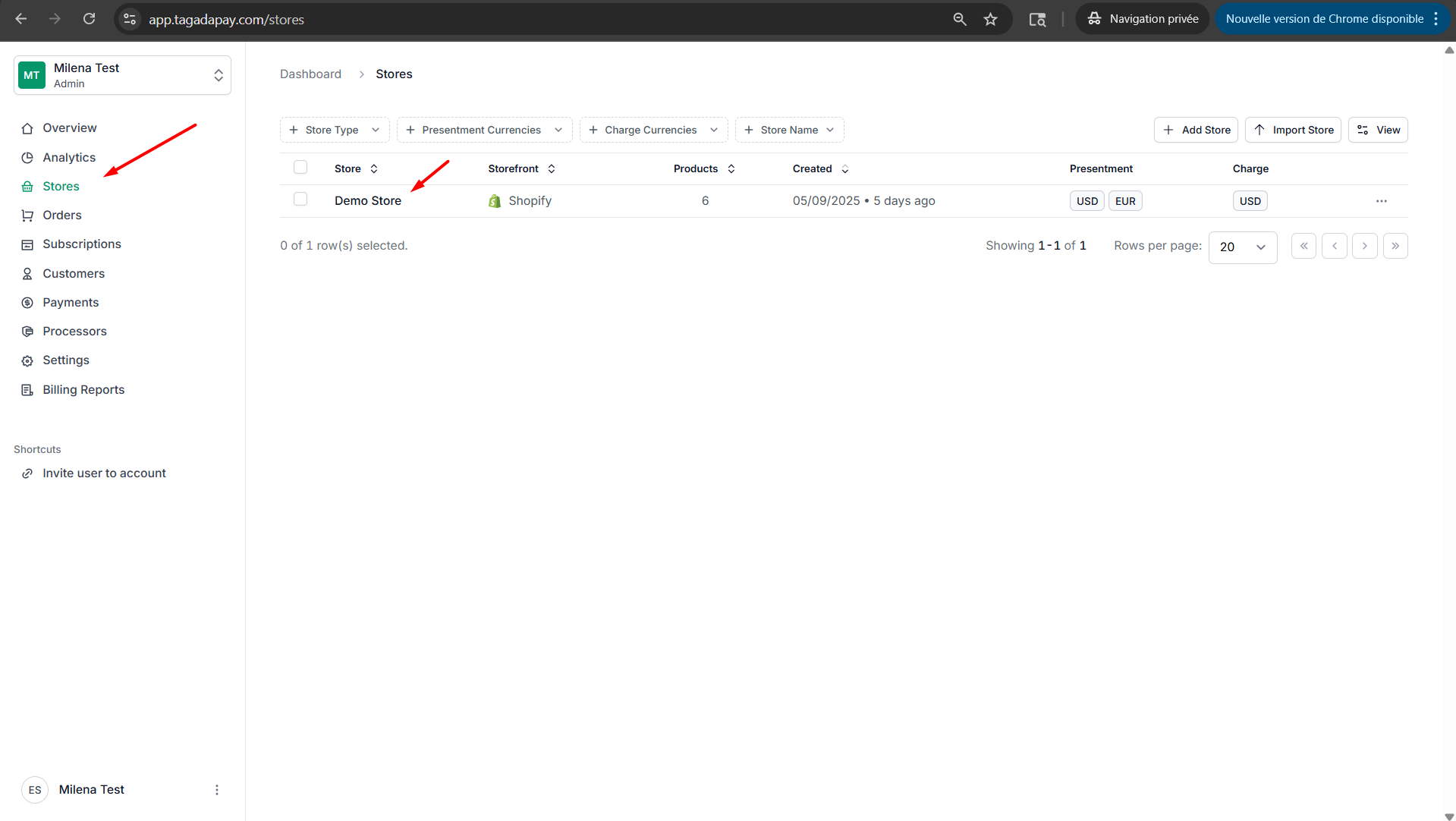
Step 1: Select your desired store under Stores.
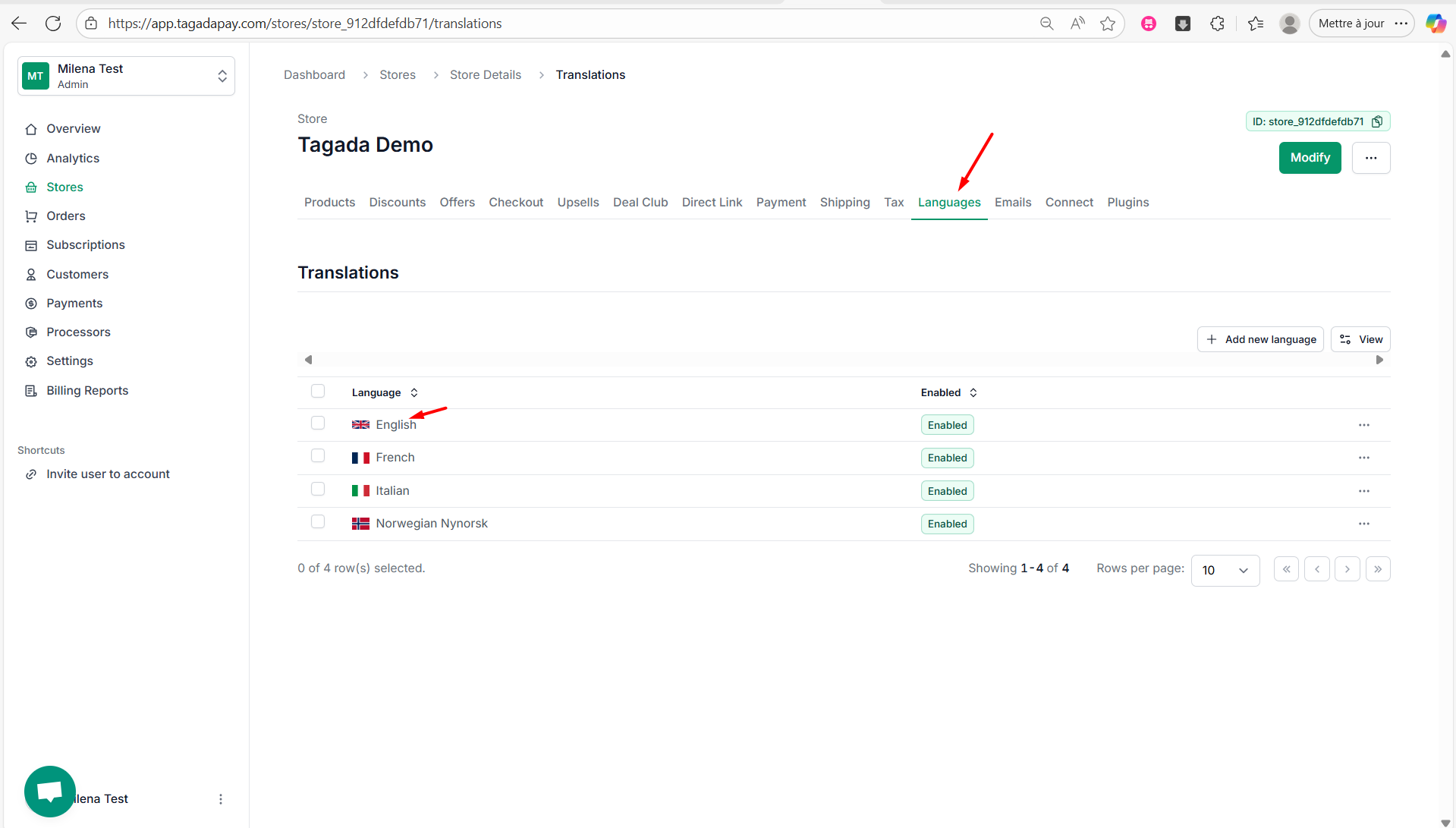
Step 2: Select the Languages tab in the menu. Click on the language you would like to modify.
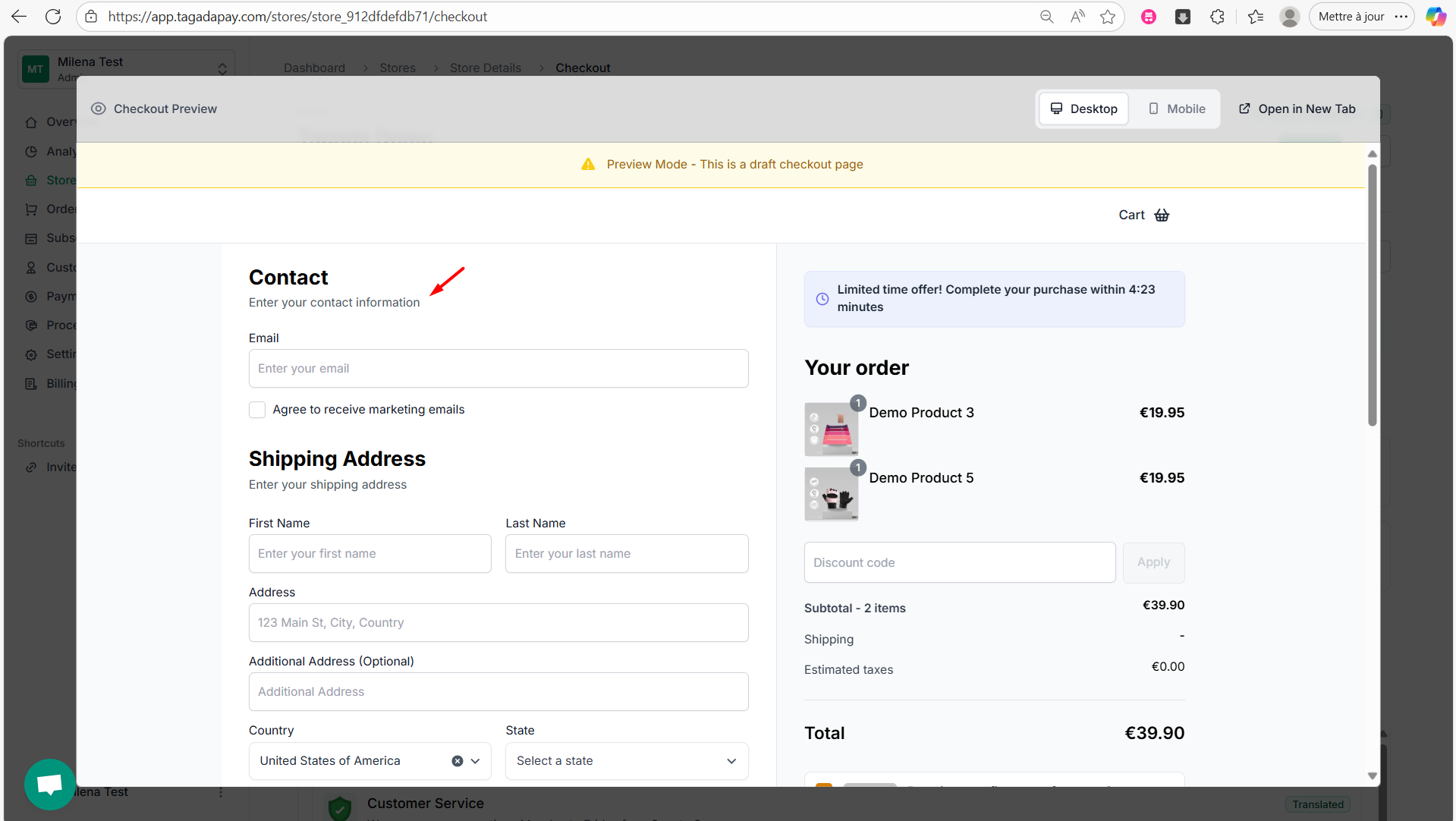
Step 3: While previewing your checkout, copy the text you want to remove.
Step 4: Paste the text into the search bar to locate it.
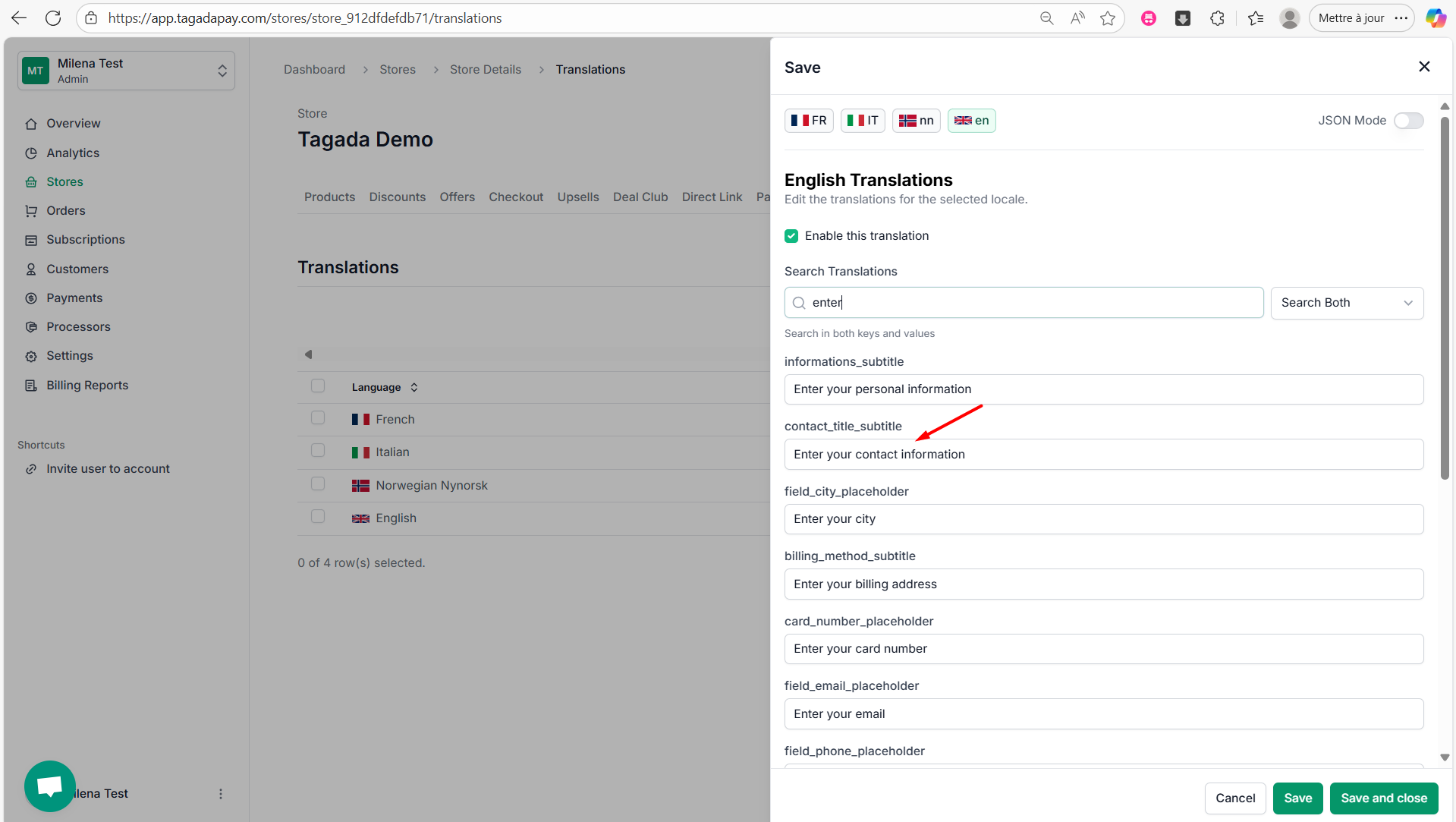
Step 5: Remove the text as needed, then click Save and Close.
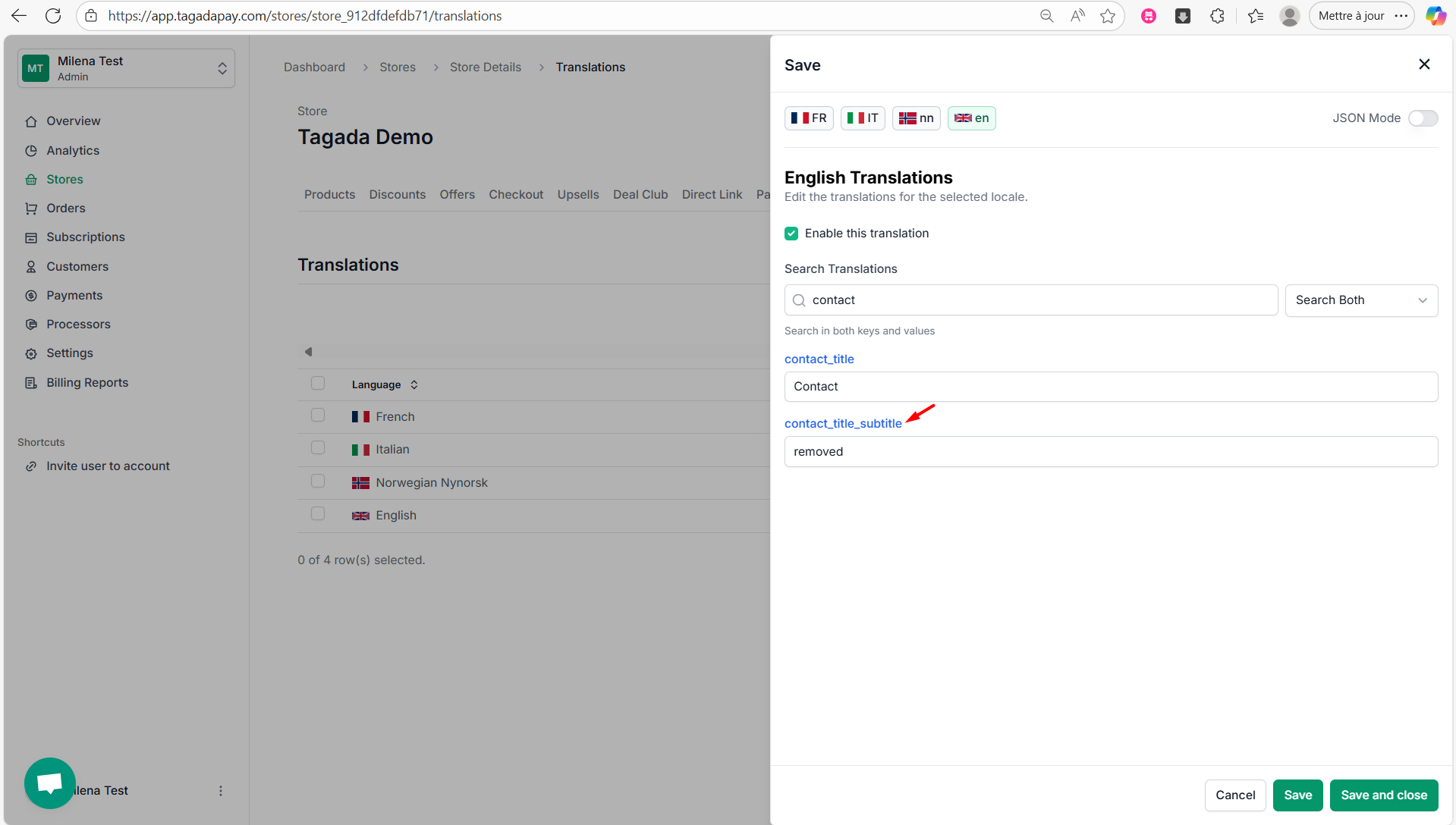
Note: If you completely remove the text from a line, make sure to remember the handle, as the text will no longer be visible. You’ll need the handle to find and edit it again later.
Step 6: Preview the checkout again to see your changes.
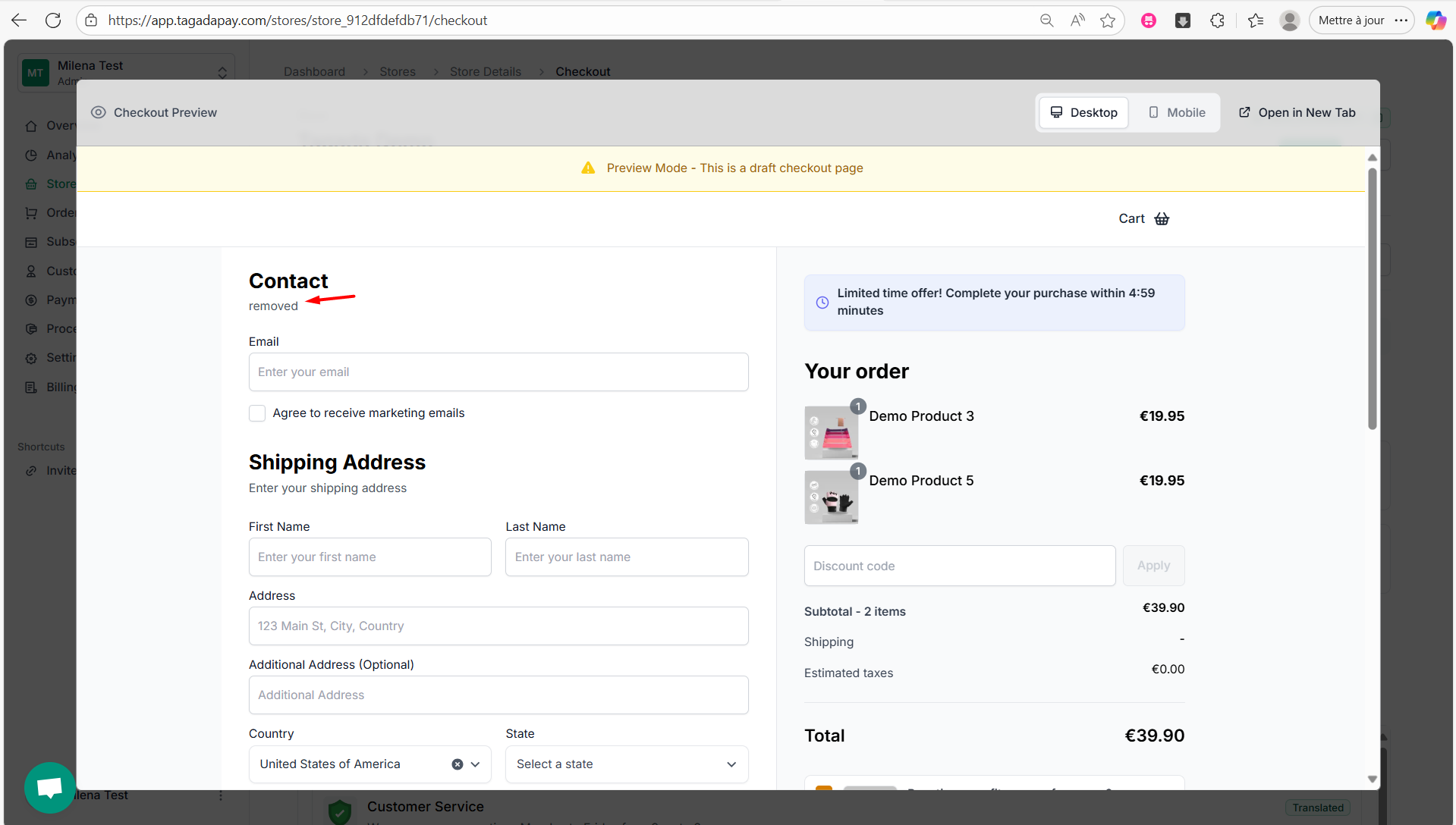
You can delete any phrase or field in your checkout using the Languages feature.
Let’s walk through an example.