
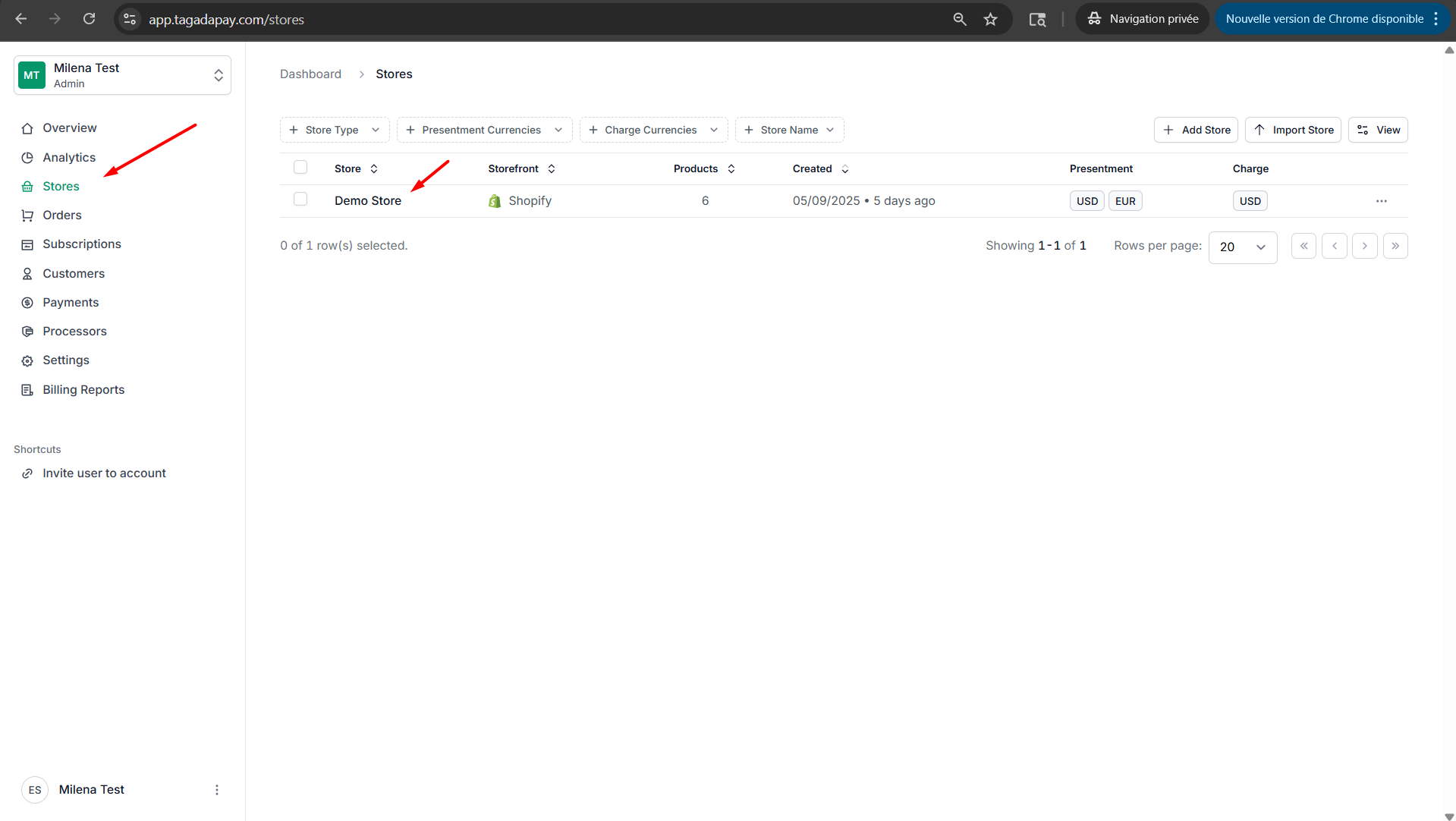
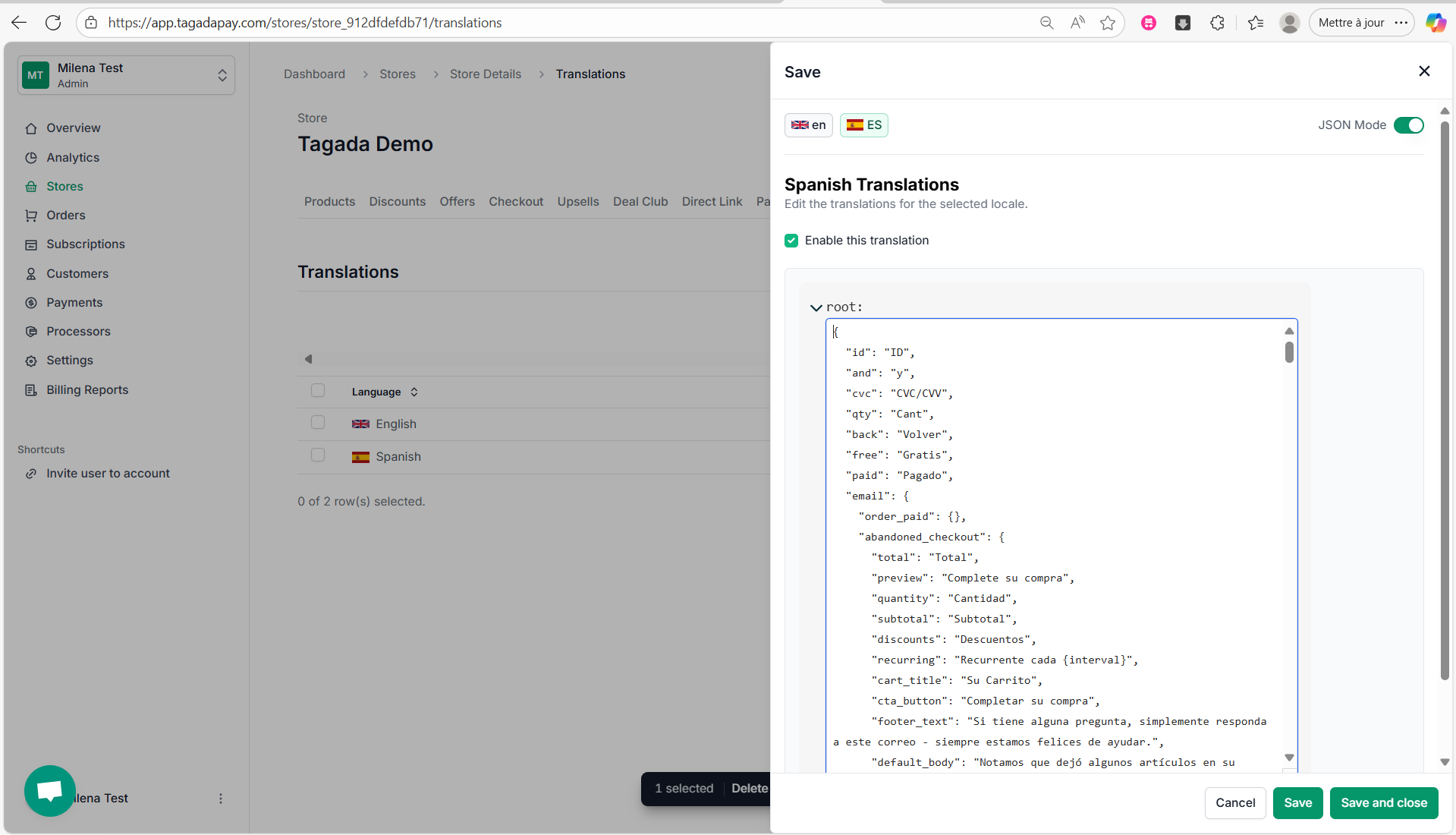
Step 1: Select your desired store under Stores.
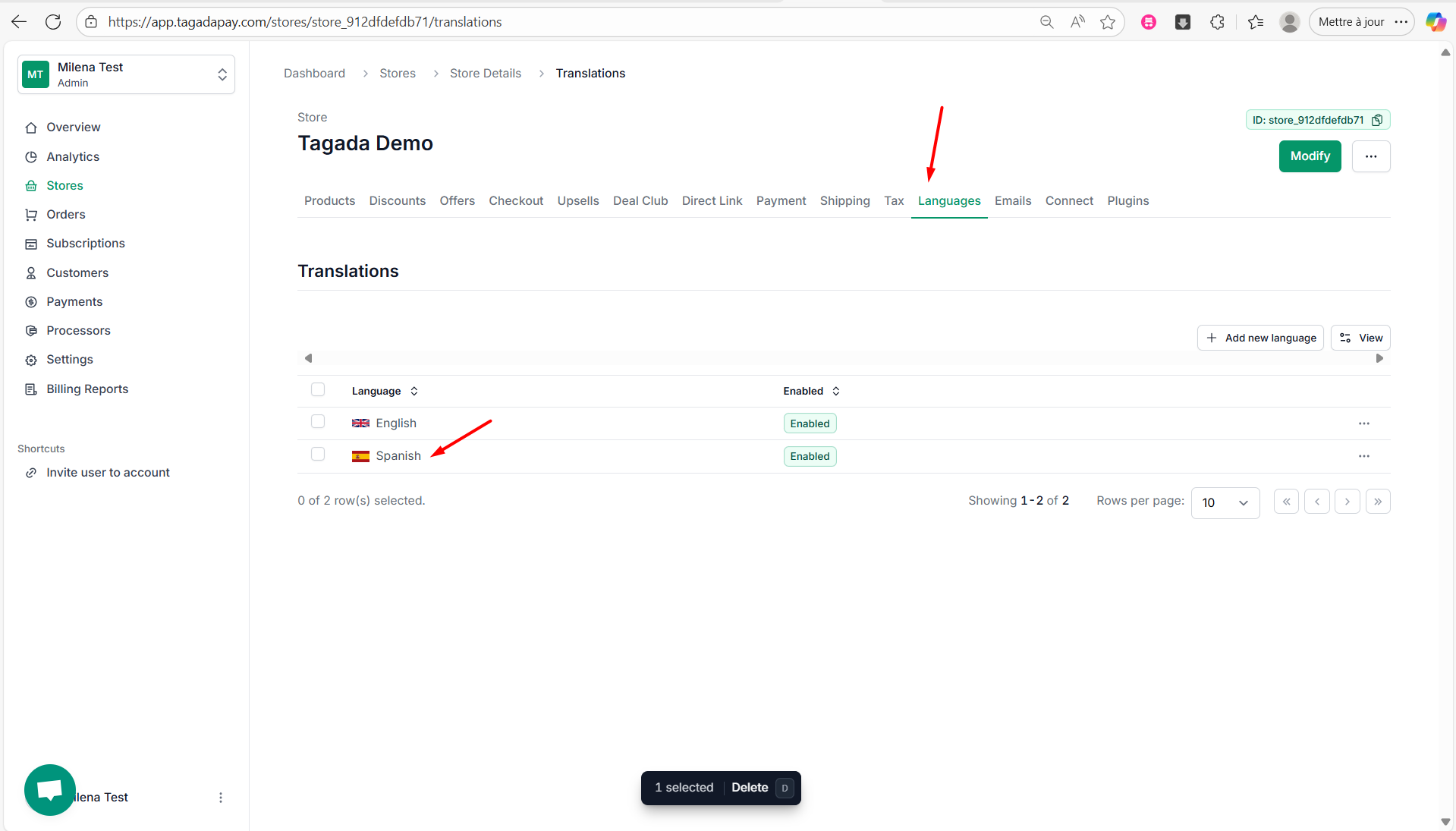
Step 2: Select the Languages tab in the menu. Click on the Spanish language.
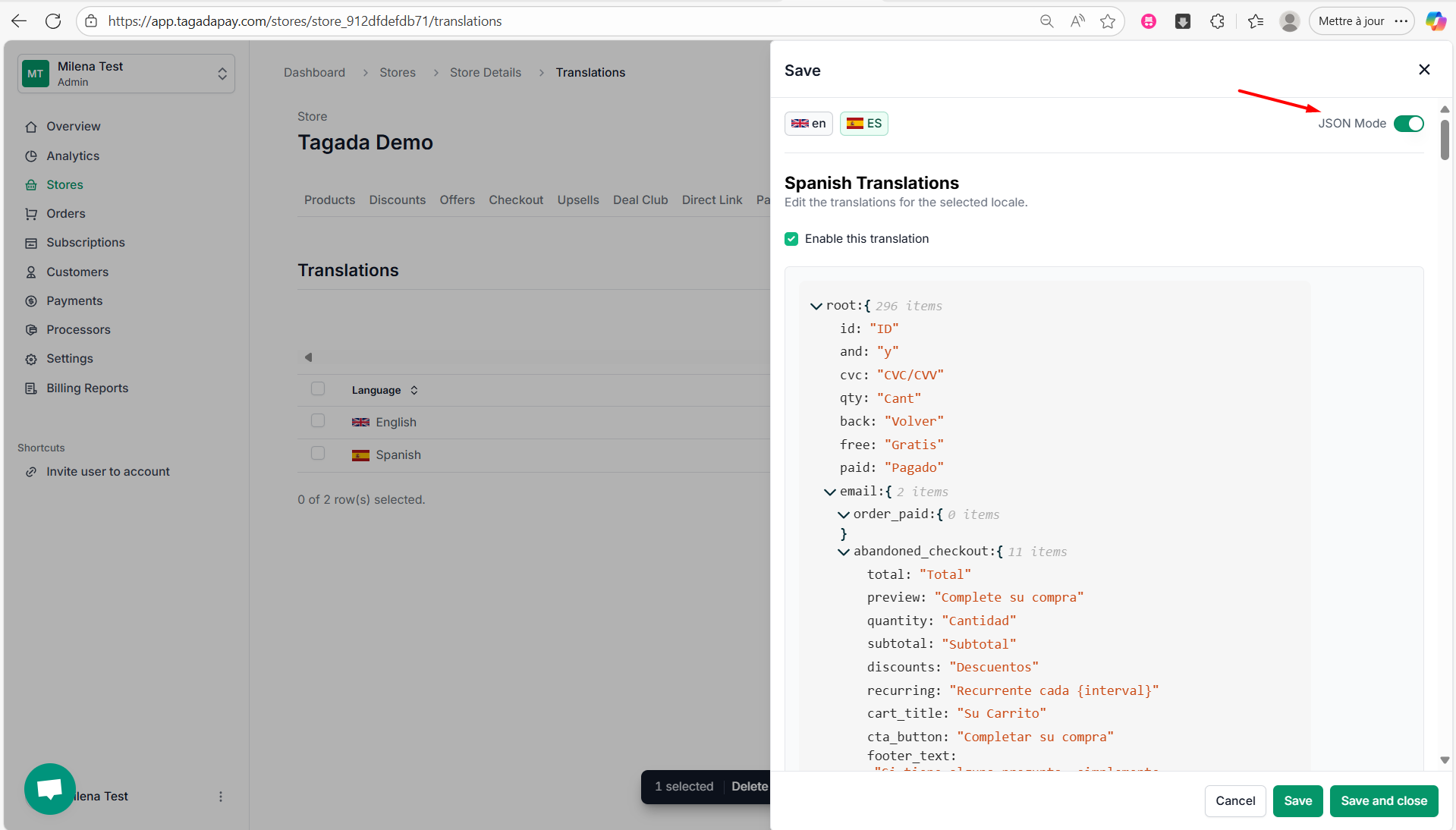
Step 3: Click on the JSON mode feature to enable it.
Step 4: Click on the edit button.

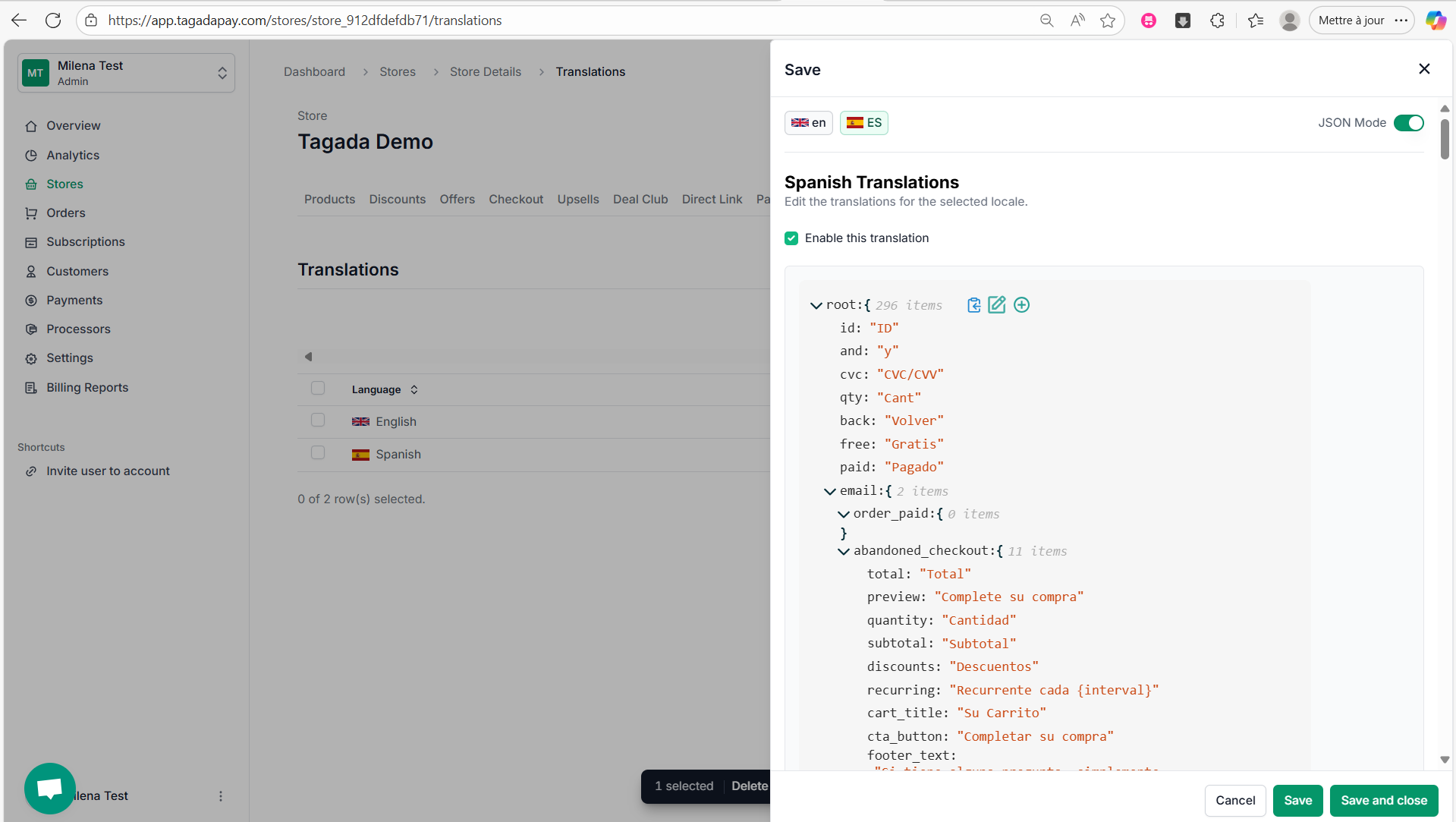
Step 5: Select the entire text (Ctrl+A) and copy it (Ctrl+C).
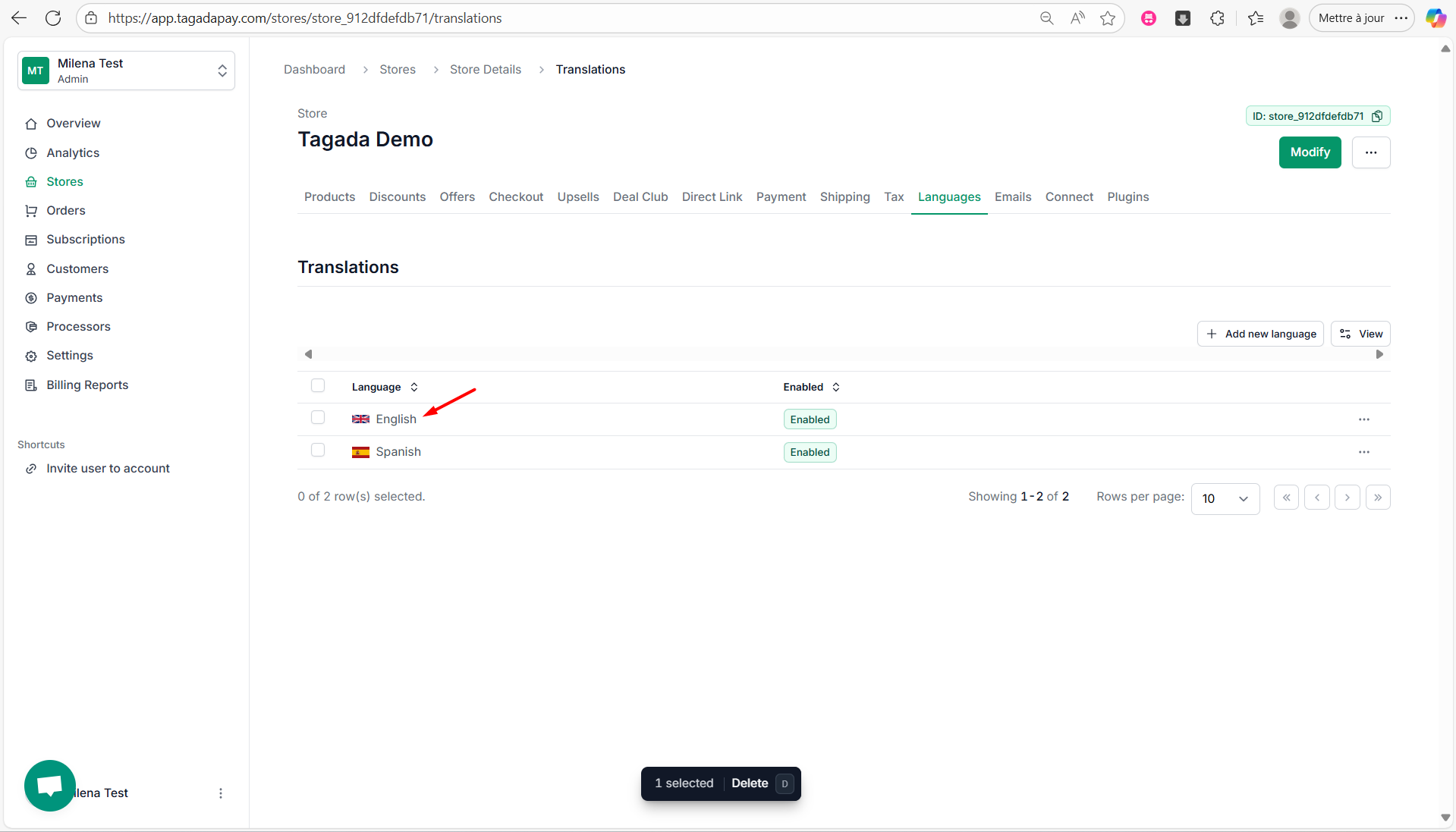
Step 6: Go back to the languages available and click on English.
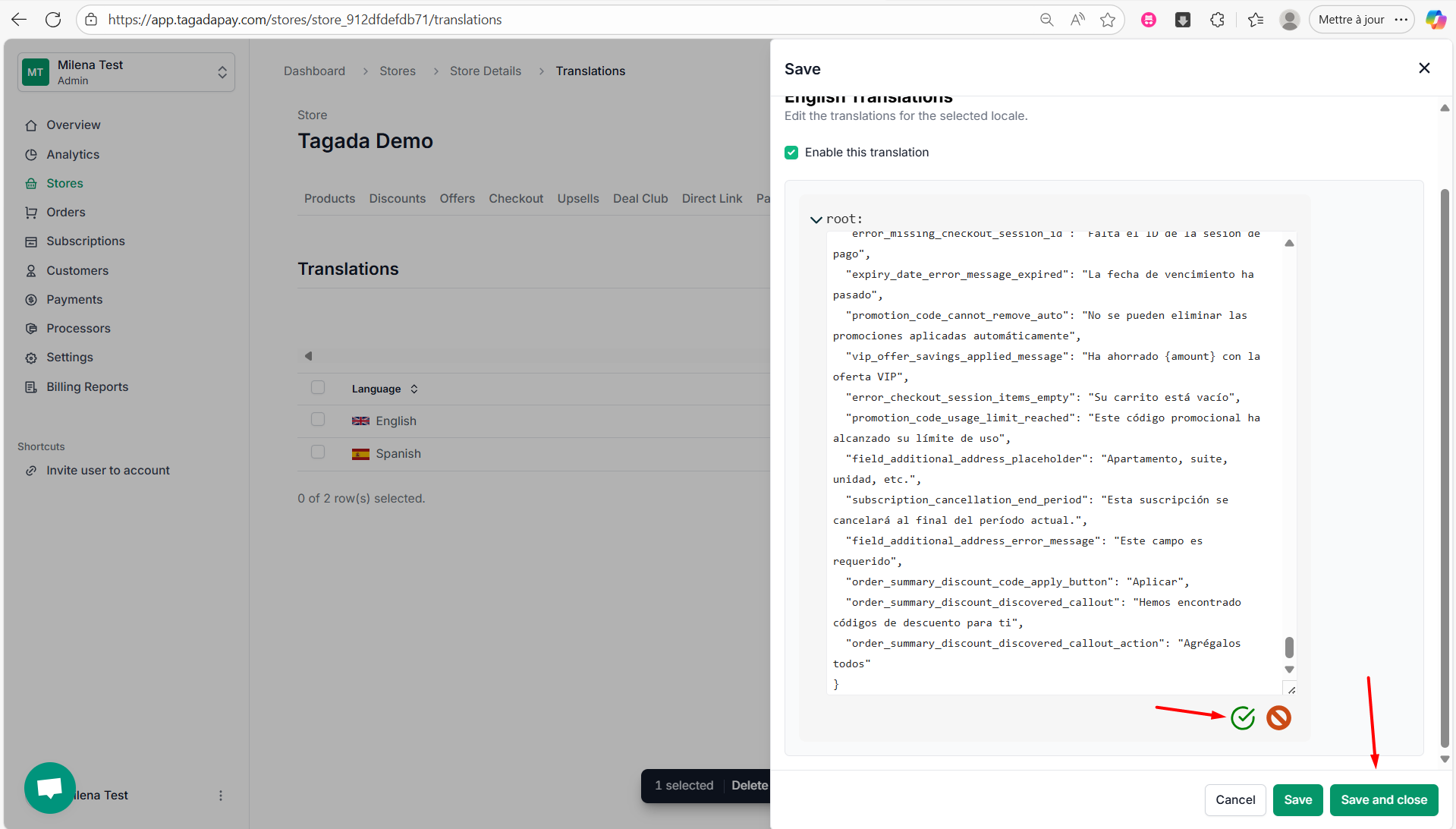
Step 7: Select the entire JSON text (Ctrl+A), delete it and paste the copied text (Ctrl+P). Click on the green icon at the bottom to save it. Then click on Save or Save and Close.

Sometimes, a store may be set to Spanish and intended for a Spanish-speaking audience, but the customer’s IP address is located in the U.S.
Since the store language is determined by the user’s IP location, this can result in the checkout being displayed in the wrong language.
To avoid this, we recommend taking the following steps to ensure the correct language is shown, regardless of the user's location.
Let’s walk through an example using the Spanish language and a Spanish-speaking audience located in the U.S.