
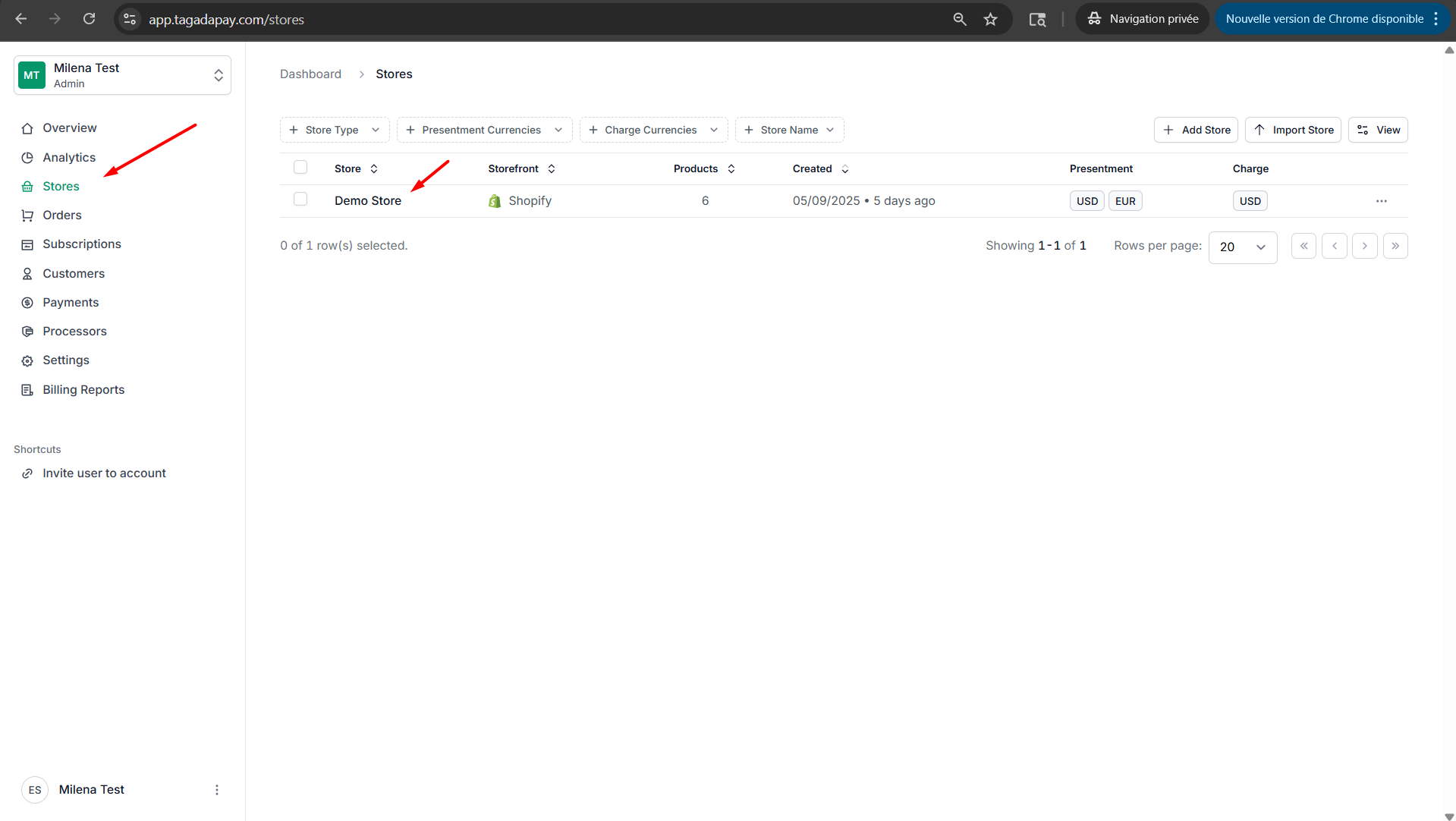
Step 1: Select your desired store under Stores.
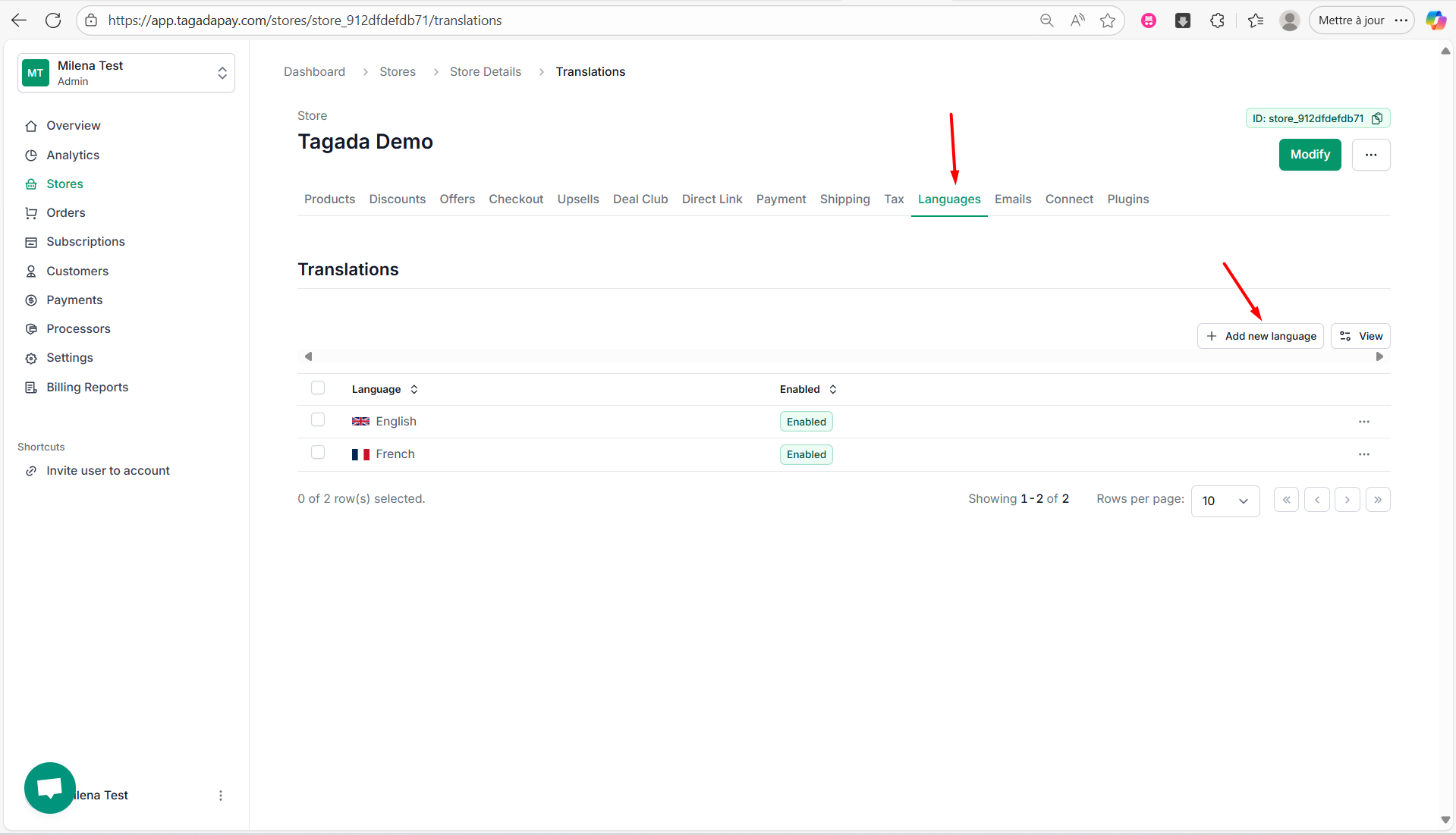
Step 2: Select the Languages tab in the menu. Click on Add new language.
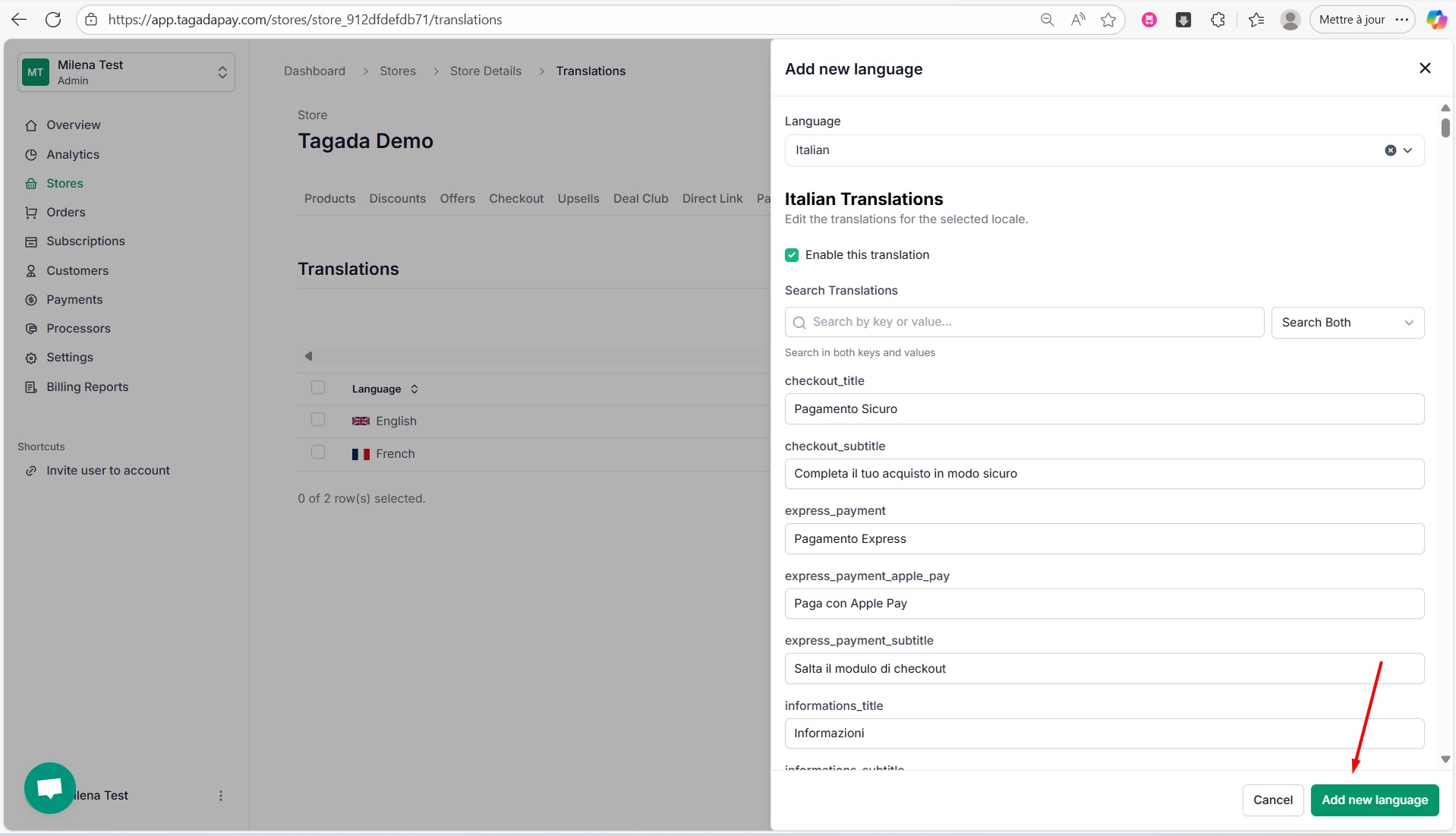
Step 3: Select your desired language in the drop-down and click on Add new language.
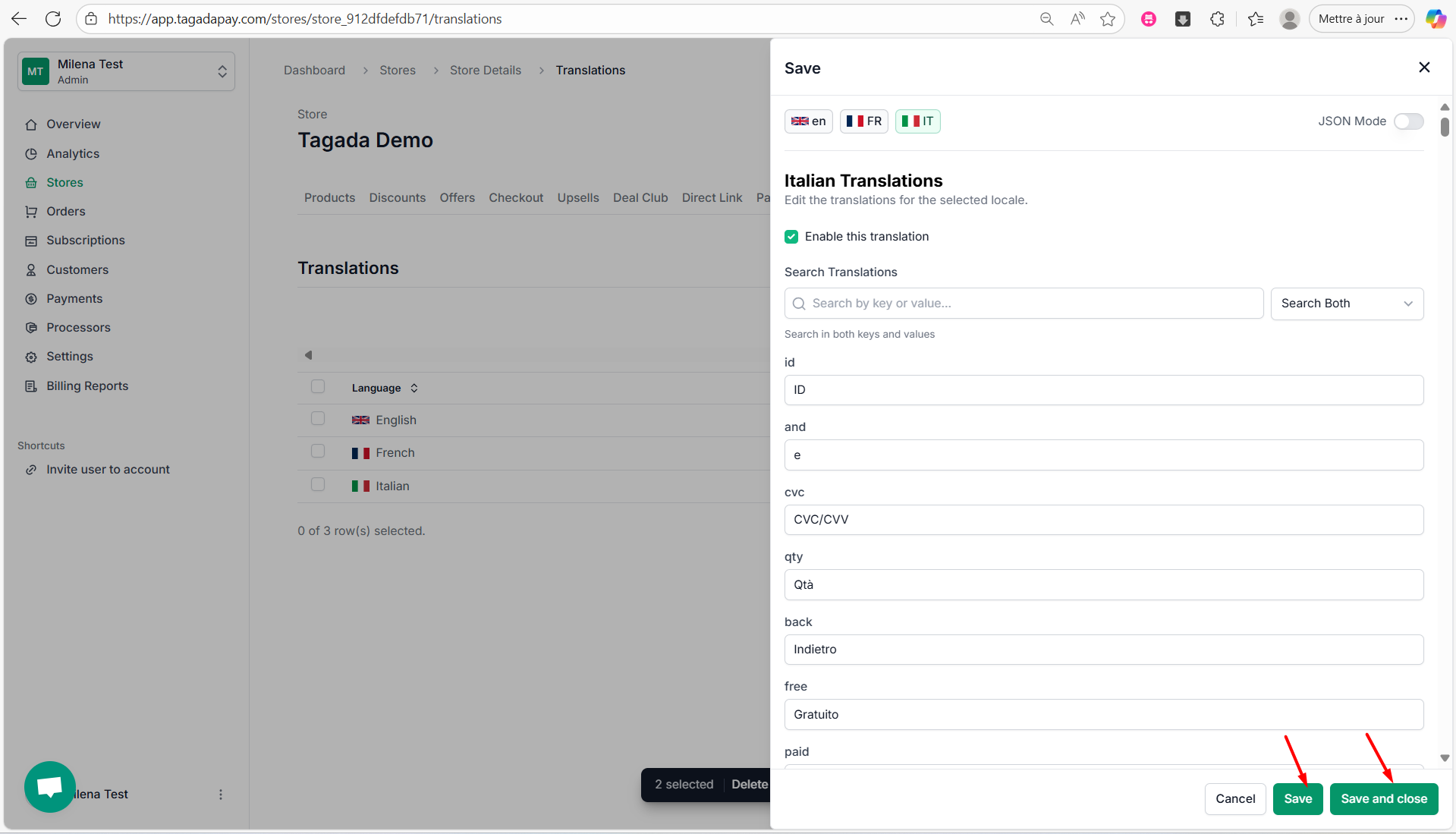
Step 4: You can easilly edit the language fields by entering your desired text. Once you are finished click on Save or Save and close.
Step 5: If your language translation is not available, you can refer to the next chapter to learn how to translate it using AI.
Note: The language displayed at checkout is based on your customer’s IP address. For example, if a customer is located in Norway, the checkout will automatically appear in Norwegian — provided that you’ve added Norwegian in your Language settings.
You can add multiple languages to your store and customize each one individually. JSON mode allows you to easily translate content into languages not currently supported by using AI.