
Step 1: Select your desired store under Stores.
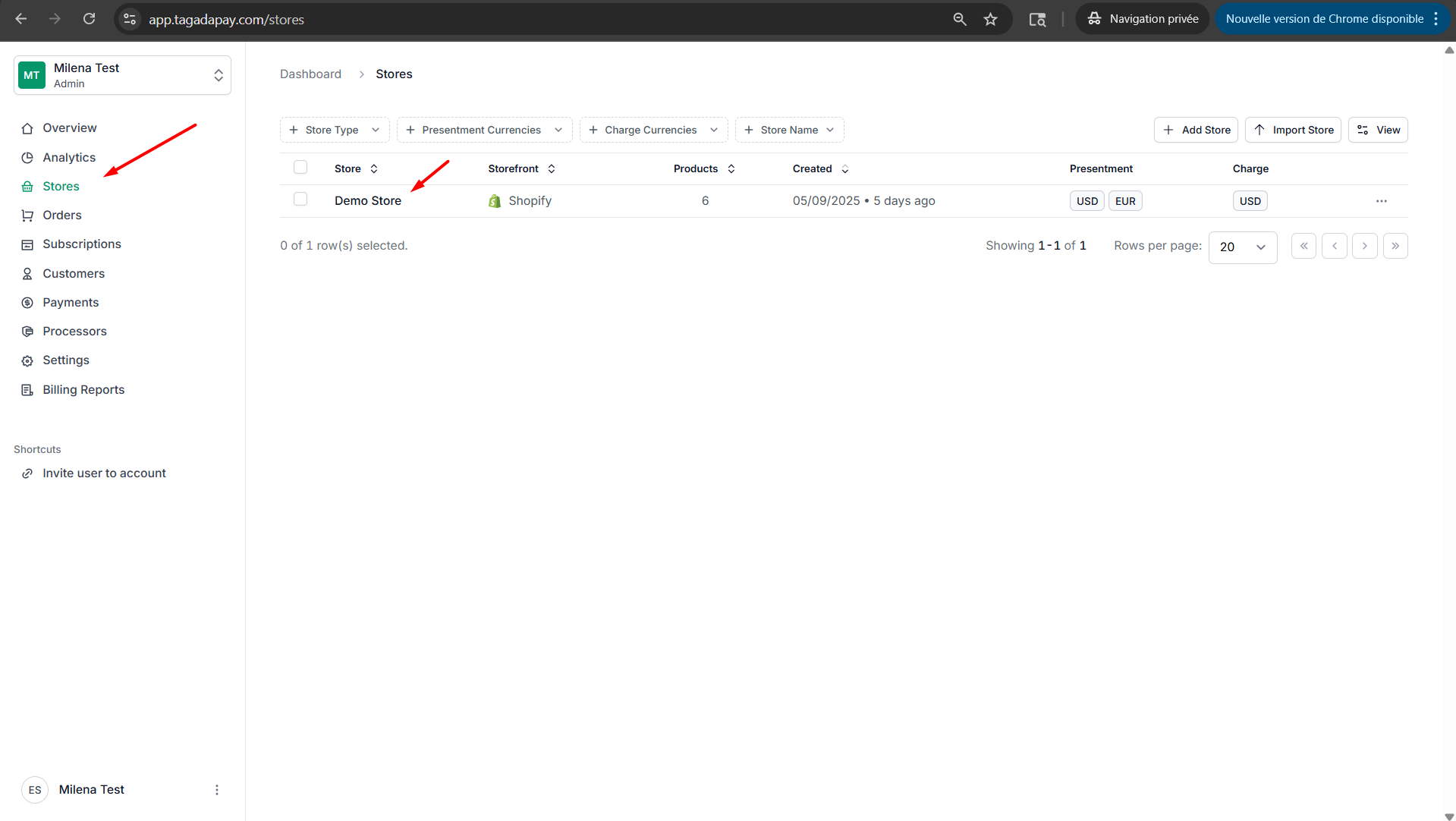
Step 2: Select the Emails tab in the menu. Then click on Settings to define the domain from which your emails will be sent.
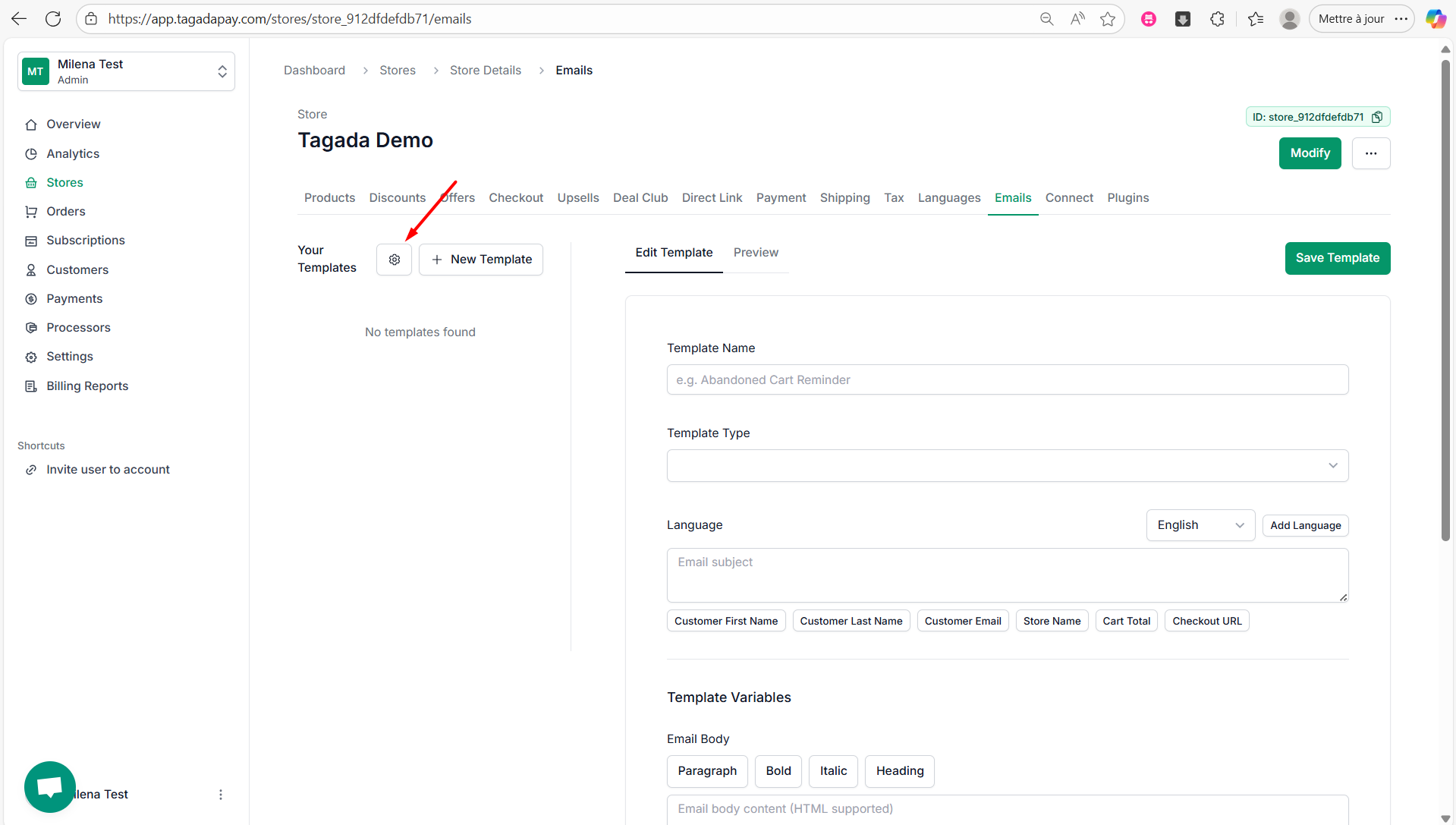
Step 3: Enter your domain name in the Custom Email Domain field. Then, add your email address in the From Email Address field, for example [email protected]. You will be required to set up the DNS records as instructed.
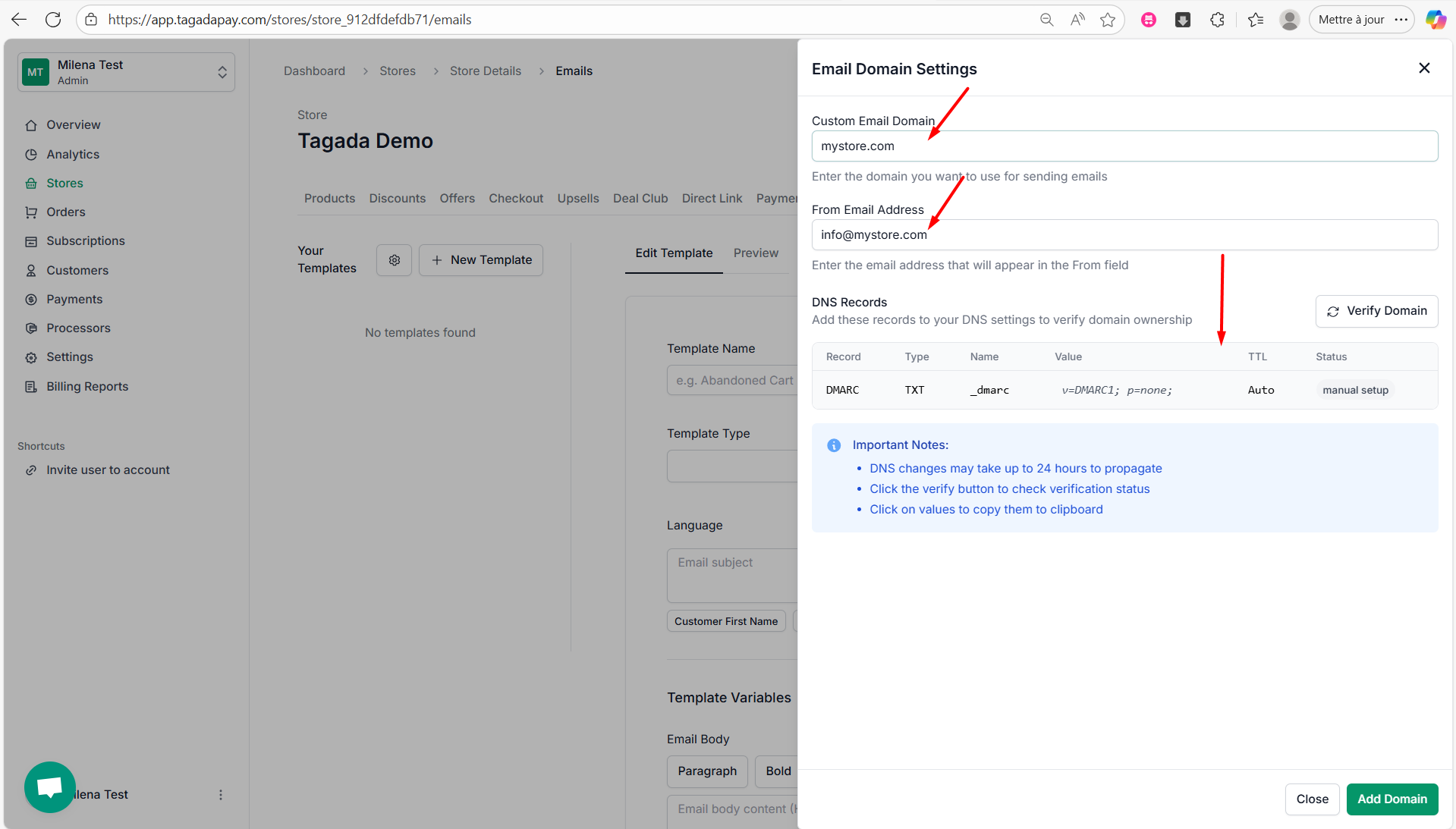
Step 4: Once you have set up your DNS records as required, click on Verify Domain.
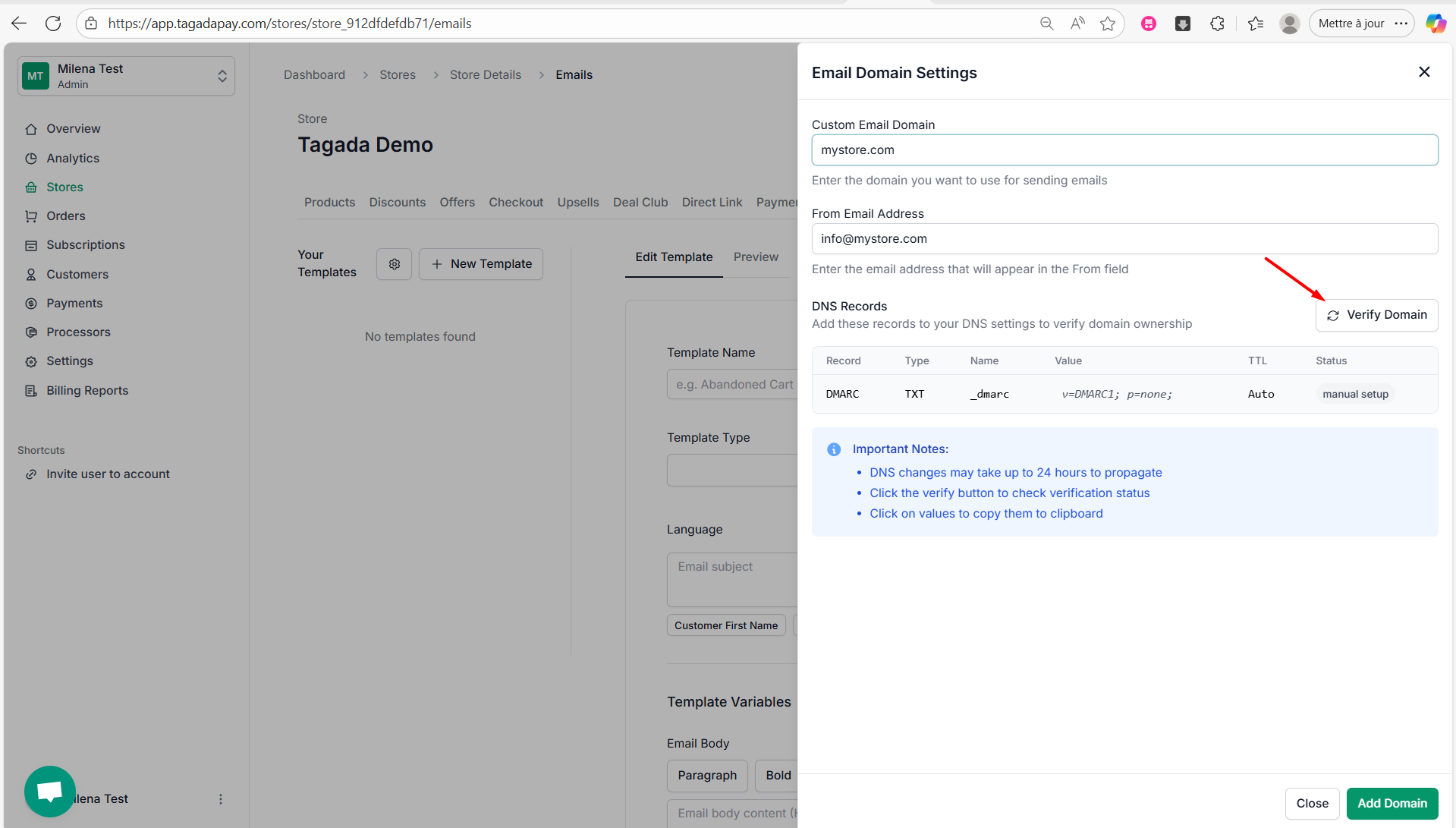
You can now continue to the next chapter where we will walk you through the steps needed to create a new email template.
You can use the Emails feature in Tagada to create templates—for example, for abandoned checkout emails—so there’s no need to use Klaviyo or other third-party services.
You have the option to send emails using either your custom domain—which we’ll explain how to set up below—or, by default, use the Tagada domain.