
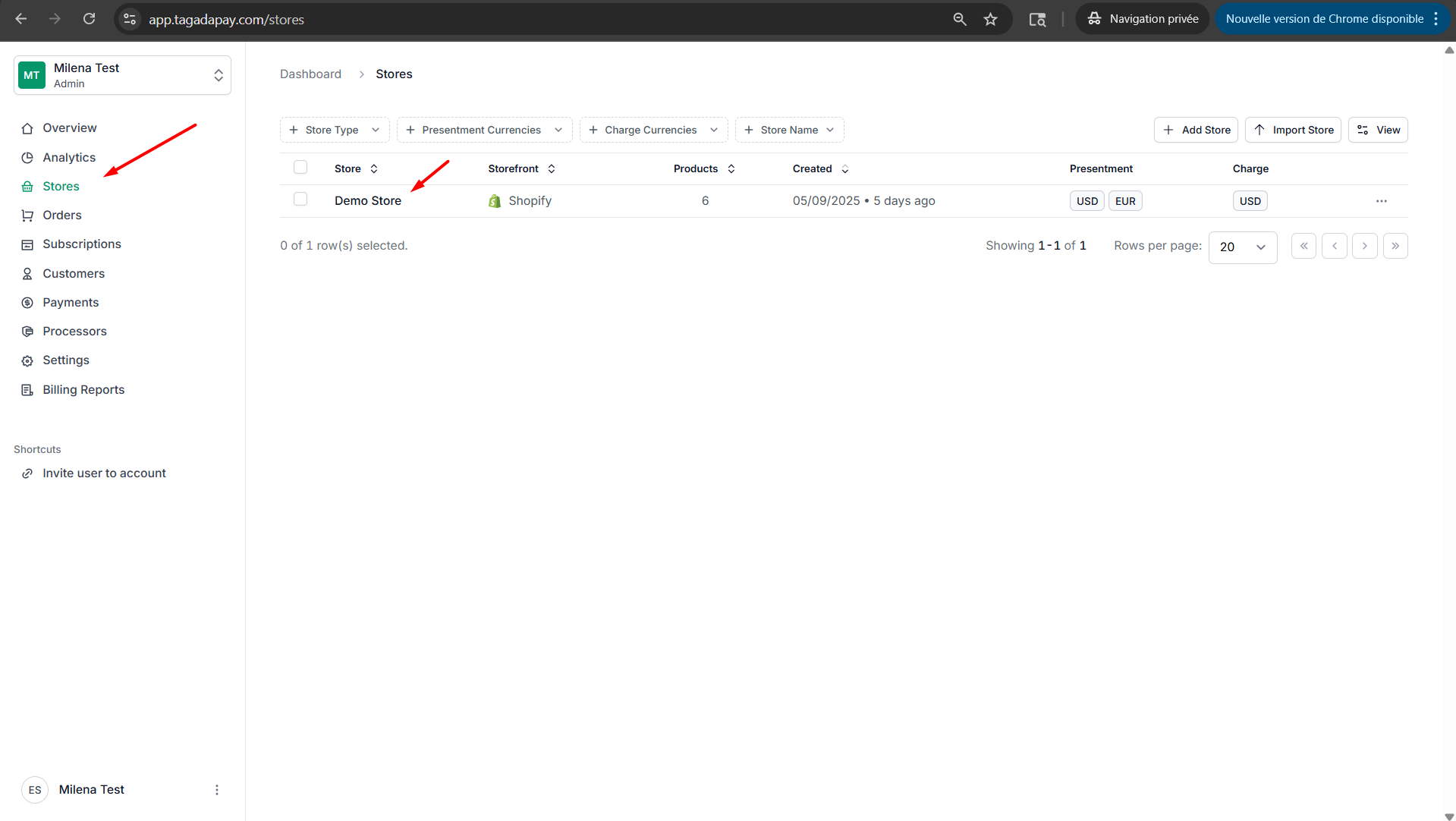
Step 1: Select your desired store under Stores.
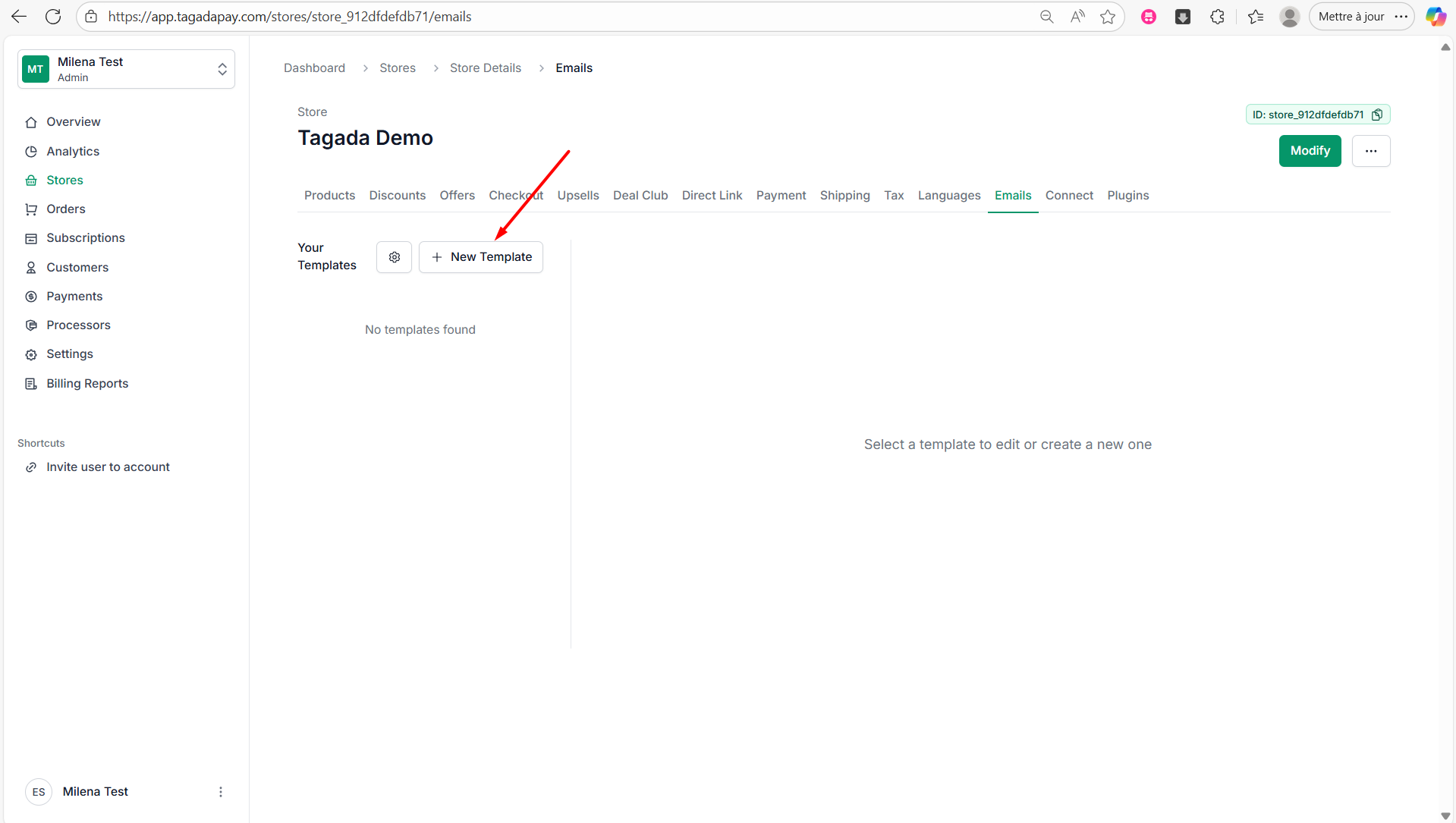
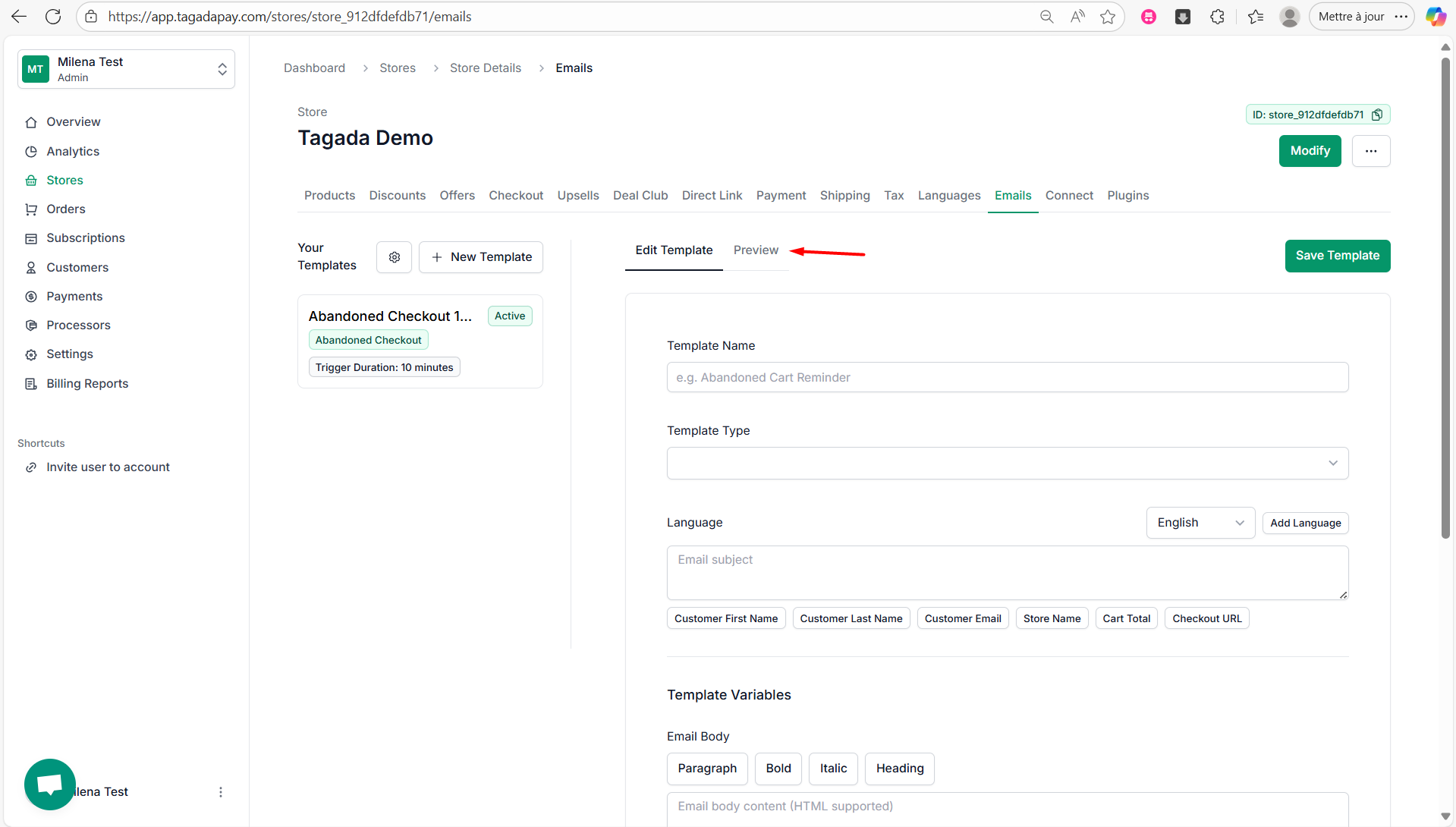
Step 2: Select the Emails tab in the menu. Then click on New Template.
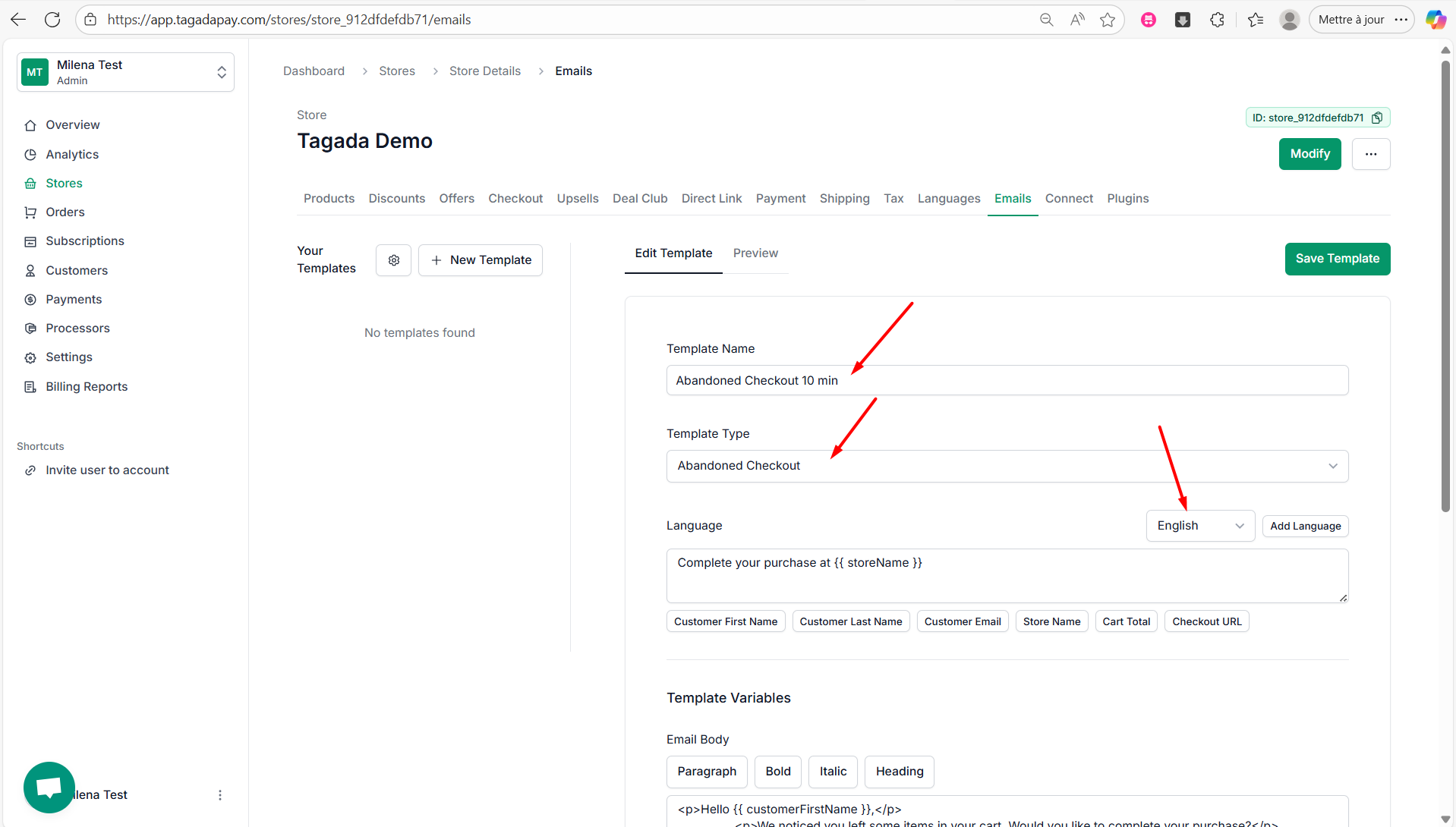
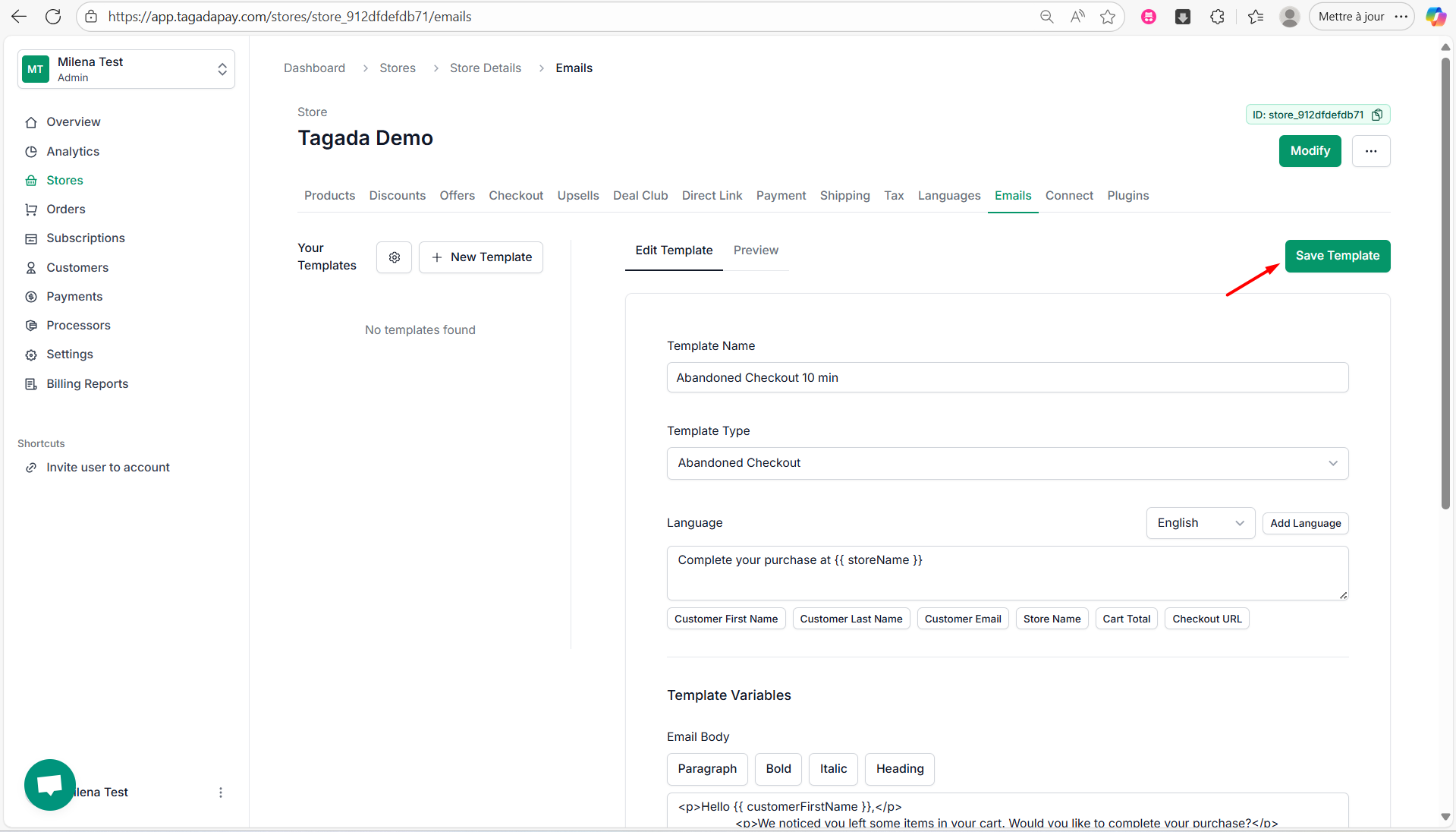
Step 3: Enter the template name for example Abandoned Checkout 10 min. Select Template type as Abandoned Checkout. Chose the Language you need.
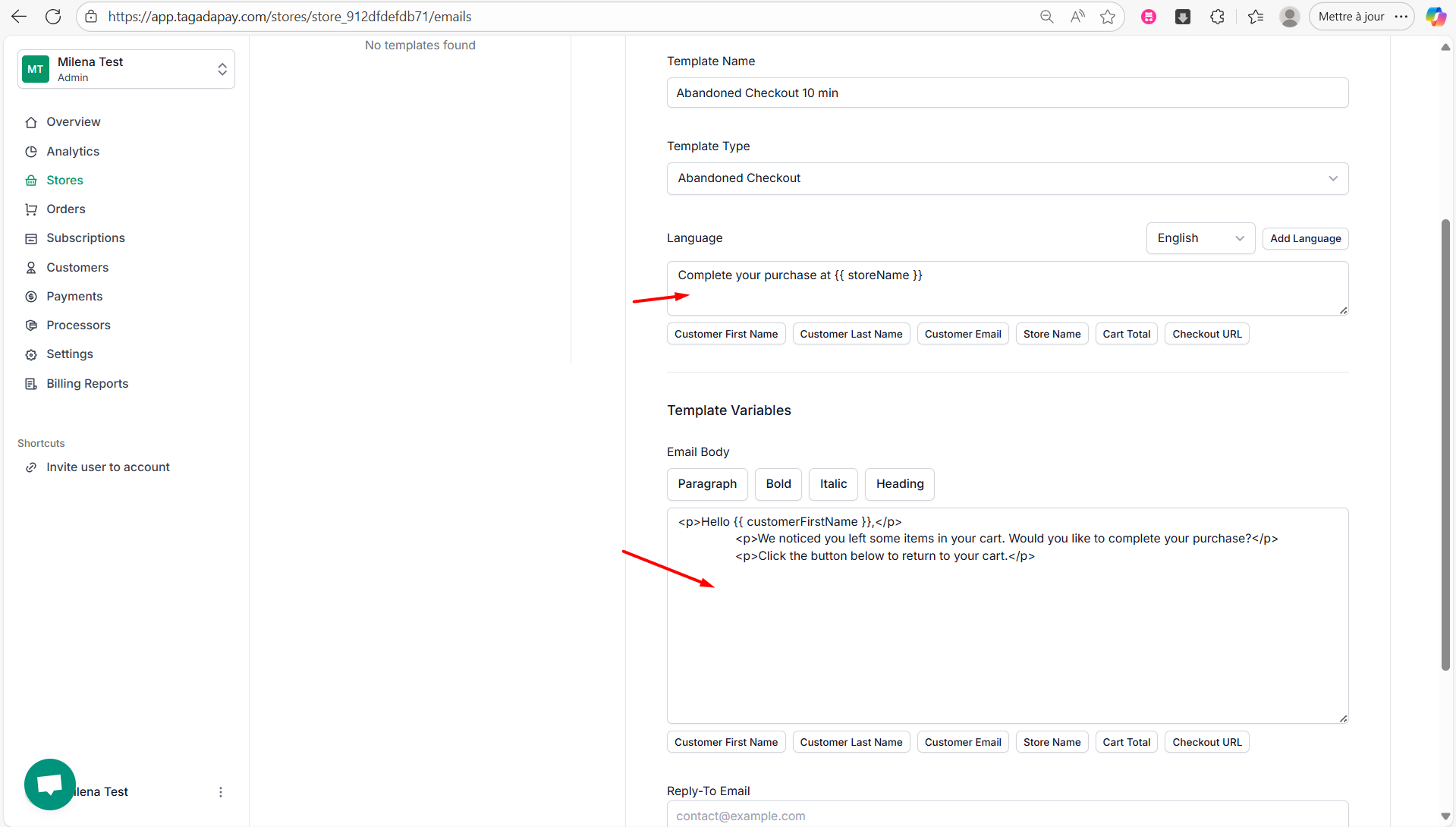
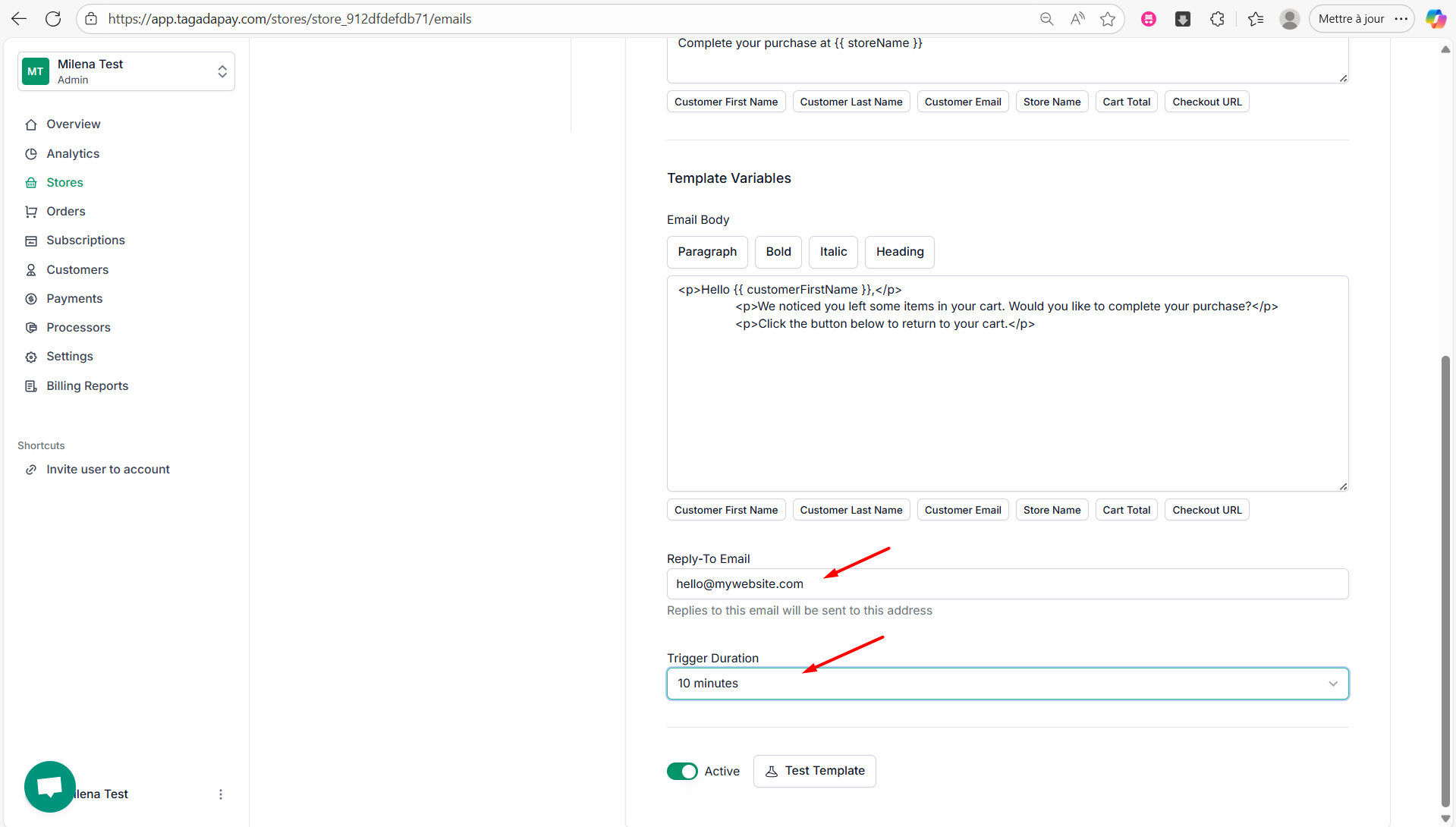
Step 4: You can customize the content of your email.
Step 5: Then set up the Reply-To Email and Trigger Duration.
Step 6: Click on Save Template to save it.
Step 7: You can preview your email template by clicking on Preview.
Note: If you prefer to use Klavyo or other third party app, you can simply connect it in the Conect tab of the menu.
You can use the Emails feature in Tagada to create templates—for example, for abandoned checkout emails—so there’s no need to use Klaviyo or other third-party services.
There are several types of Emails in Tagada:
Abandoned Checkout
Customer Promotion Code
Subscription Rebill Incoming
Club membership started
Club membership deactivated
Let’s show it on an example of Abandoned Checkout email type.